Settings is the admin hub where you configure your organization before importing orders or using fulfillment workflows. Instead of a single long tab row, the Settings page opens on a grouped landing screen so you can navigate directly to the area you need.Documentation Index
Fetch the complete documentation index at: https://docs.sellfern.com/llms.txt
Use this file to discover all available pages before exploring further.
Settings groups
Settings is divided into three groups, each covering a distinct part of your workspace configuration.Organization
| Tab | Purpose |
|---|---|
| Stores | Define the storefronts your orders are tied to |
| Suppliers | Maintain supplier records for cost and fulfillment workflows |
| Email Map | Connect sender emails to stores for Gmail order sync |
| VAT/IOSS | Configure VAT and IOSS mappings for EU and international orders |
| Exchange Rates | Set up currency mappings for multi-currency order handling |
People & Access
| Tab | Purpose |
|---|---|
| Users | Create and manage team members with role-based access |
| Invite management | Review pending invitations |
| Change Password | Update your account password |
| API Tokens | Create and manage integration tokens |
Operations
| Tab | Purpose |
|---|---|
| Expense Categories | Configure categories used by Operating Expenses |
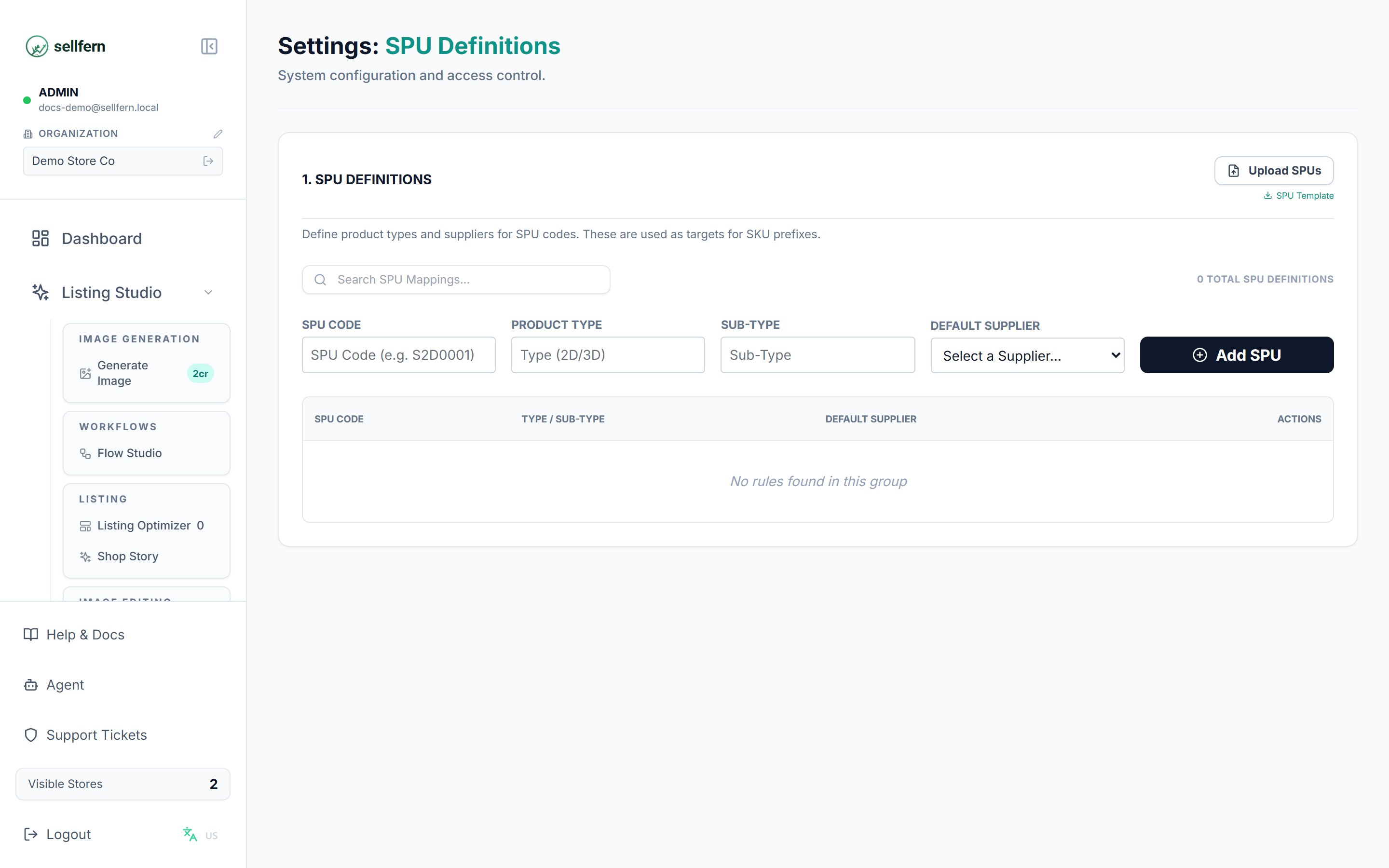
| SPU Definitions | Define internal base products with product type, sub-type, and optional default supplier |
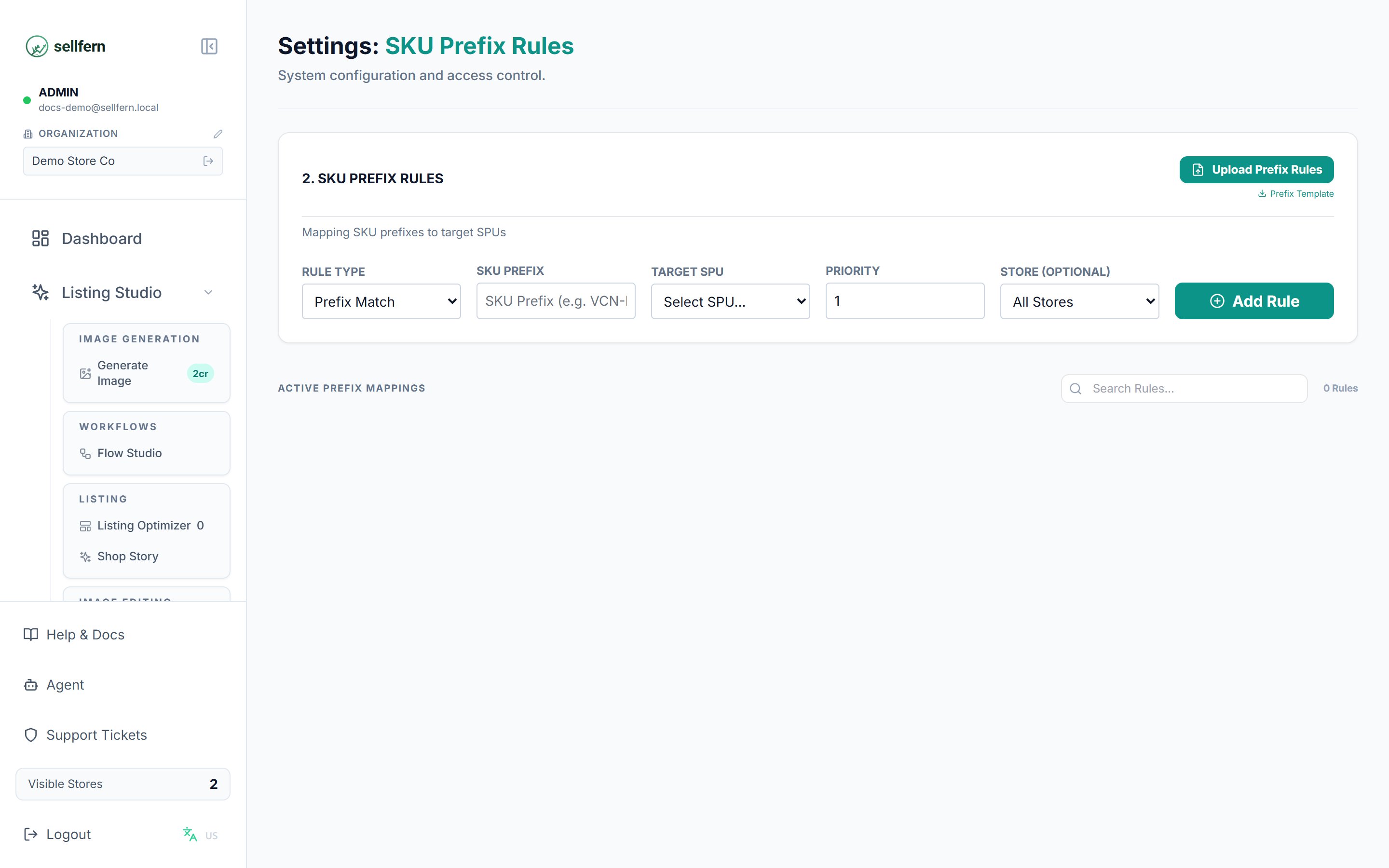
| SKU Prefix Rules | Map marketplace SKUs to SPUs with priorities and optional store scoping |
| AI Automation | Configure AI-driven automation behavior |
| Order Settings | Adjust order processing defaults |
| Listing Studio | Configure Listing Studio behavior |
Recommended first-time setup
Complete these steps before importing a large batch of orders. Getting your foundational settings right reduces unmatched SKUs, missing suppliers, and cleanup work later.Add stores
Go to Settings → Stores and create a record for each storefront you sell on. Orders are tied to stores, so this step must come first.
Add suppliers
Go to Settings → Suppliers and add any suppliers you use for production or fulfillment. Supplier records drive cost workflows and are required for the SUPPLIER role.
Configure SKU-SPU mapping
Go to Settings → SPU Definitions to define your internal base products, then go to Settings → SKU Prefix Rules to map incoming marketplace SKUs to those SPUs. Do this before relying on automated product matching.
Add expense categories
Go to Settings → Expense Categories and create categories for your operating expenses. Setting these up now keeps your expense records consistent from the start.
How product mapping works
Product mapping in Sellfern is split into two focused settings that work together. SPU Definitions represent internal base products. Each SPU has a product type, sub-type, and an optional default supplier. SPUs are the normalized targets that Sellfern uses internally — independent of how marketplaces label your products. SKU Prefix Rules connect the SKUs that arrive from marketplaces to your internal SPUs. Each rule has a priority and can optionally be scoped to a specific store, giving you fine-grained control over how SKUs are matched. Use higher-priority rules for specific exceptions — for example, a store-specific SKU variant that should map to a different SPU than the default. Use lower-priority rules for broad fallback mappings that cover the general case. Sellfern evaluates rules in priority order and applies the first match.The tabs and cards visible in Settings depend on your role and the page permissions your admin has configured. If you cannot see a setting described here, ask an admin to check your access under Settings → Users.