
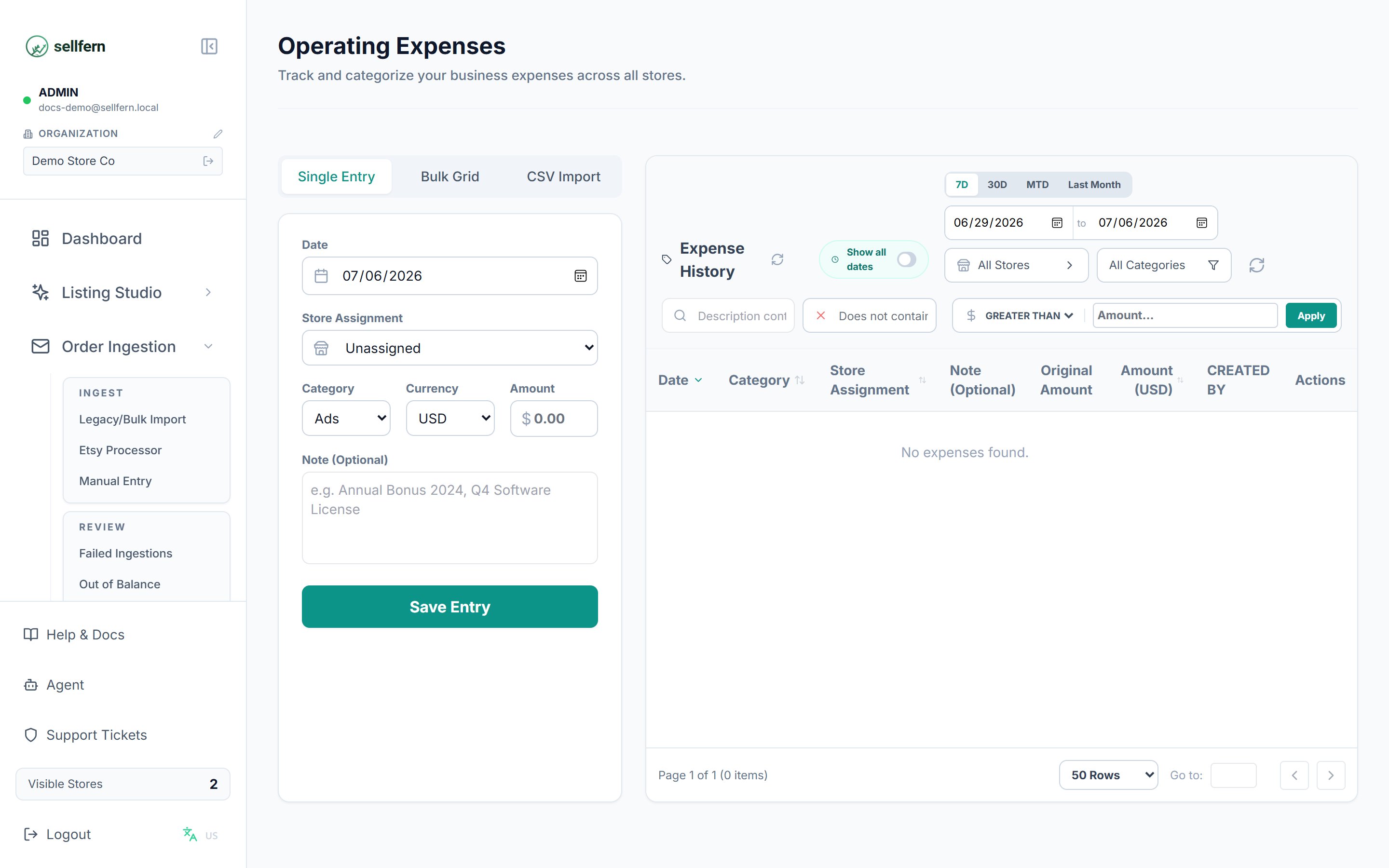
The Operating Expenses page with recorded ad spend and software costs
Operating Expenses can also be automated through the public API. Use
expenses:write to create expenses and expenses:read to list or retrieve them.What belongs in Operating Expenses
Use Operating Expenses for costs that support business operations but are not directly attached to a specific order:- Ad spend, including Facebook, Google, Etsy Ads, and similar channels.
- Software subscriptions and tools.
- Logistics and service fees.
- Office costs and other overhead.
- Custom categories you define.
Setting up expense categories
Before recording expenses, configure categories in Settings → Expense Categories.- Categories are split into Operating and Payroll groups.
- You can drag and drop categories to reorder dropdown menus.
- Mark a category as Inactive if you no longer use it. Historical data remains preserved.
- Only admin users can create or modify categories.
Recording an expense
You can add expenses four ways:- Single Entry — enter one expense at a time.
- Bulk Entry — enter multiple expenses in a grid.
- CSV Upload — upload a spreadsheet of expenses from another system or bank export.
- API — create single or bulk expenses from external systems using the Expenses API.
Required fields
Every expense entry requires:- Date — when the expense occurred.
- Category — select a configured category, or choose Other and enter a custom label.
- Amount — the cost in USD.
When entering expenses manually or via bulk entry, Sellfern checks for potential duplicates with the same date, category, and store. Review warnings before saving.
Ad spend and VAT
A 5% VAT is automatically added to expenses recorded under an Ads category. VAT is calculated and tracked separately so Analytics can show both net ad spend and the VAT component.Recurring expenses
For predictable costs, create a recurring expense. Sellfern applies the same amount, category, and store assignment on the schedule you configure.How expenses affect Analytics
Operating expenses feed into Net Profit calculations.API automation
Use the API for system-to-system expense imports from accounting tools, bank exports, payroll processors, or workflow automation platforms.base_amount, bhxh_amount, bhxh_rate, bhxh_type, and employee_name.