
Above the table on every tab sits a shared toolbar: search box, quick filters, Views (saved column layouts), Rules (text replacement rules), the store / supplier / status filters, a date range, Apply, and the Excel export button.
Cost Table tab
When an order is first ingested, its line items appear in the Cost Table with a status of Pending Cost. Your goal on this tab is to fill in the details a supplier needs before items move to the fulfillment queue.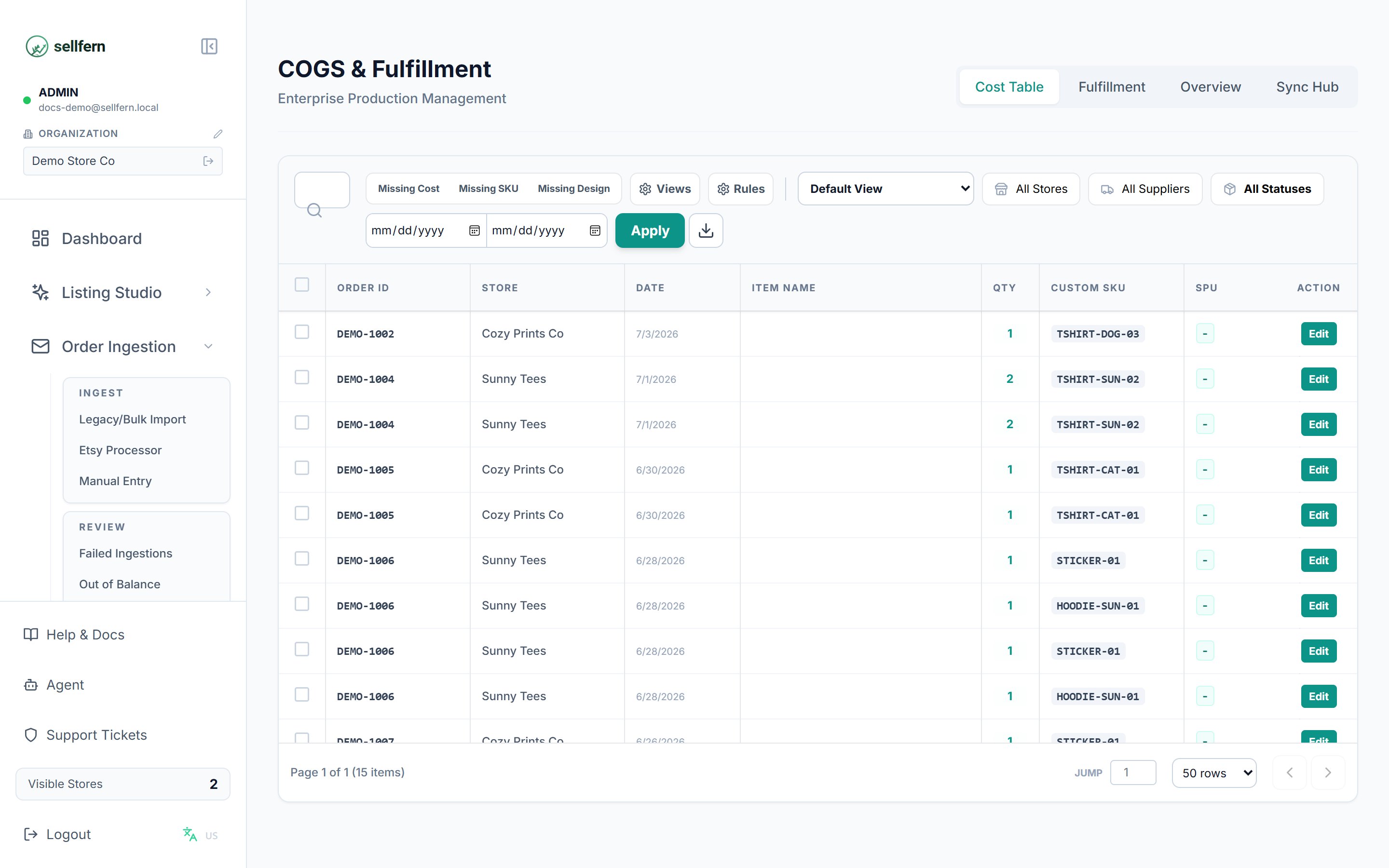
The Cost Table tab — where new items wait for cost, SKU, and supplier. Note the Missing Cost / Missing SKU / Missing Design quick filters at the top
Required fields for production
Before you can mark an item as ready, it needs:- Base Cost — the monetary cost to produce and ship the item.
- Custom SKU — the exact SKU your supplier recognizes.
- Design Link — a URL pointing to the artwork file.
- Supplier — the assigned manufacturer, such as Printway or BurgerPrints.
Editing items
- Inline editing — double-click Base Cost or Supplier to edit directly in the table. Save with the green checkmark or cancel with the red X.
- Bulk editing — select multiple rows to reveal the Action Bar, then apply a bulk Base Cost, bulk Supplier, or tracking-code update.
Moving items to fulfillment
Once an item has all required fields, select it and click Mark as Ready. The item’s status changes from Pending Cost to New and it moves to the Fulfillment tab.Fulfillment tab
The Fulfillment tab tracks items that have been marked ready and are moving toward delivery.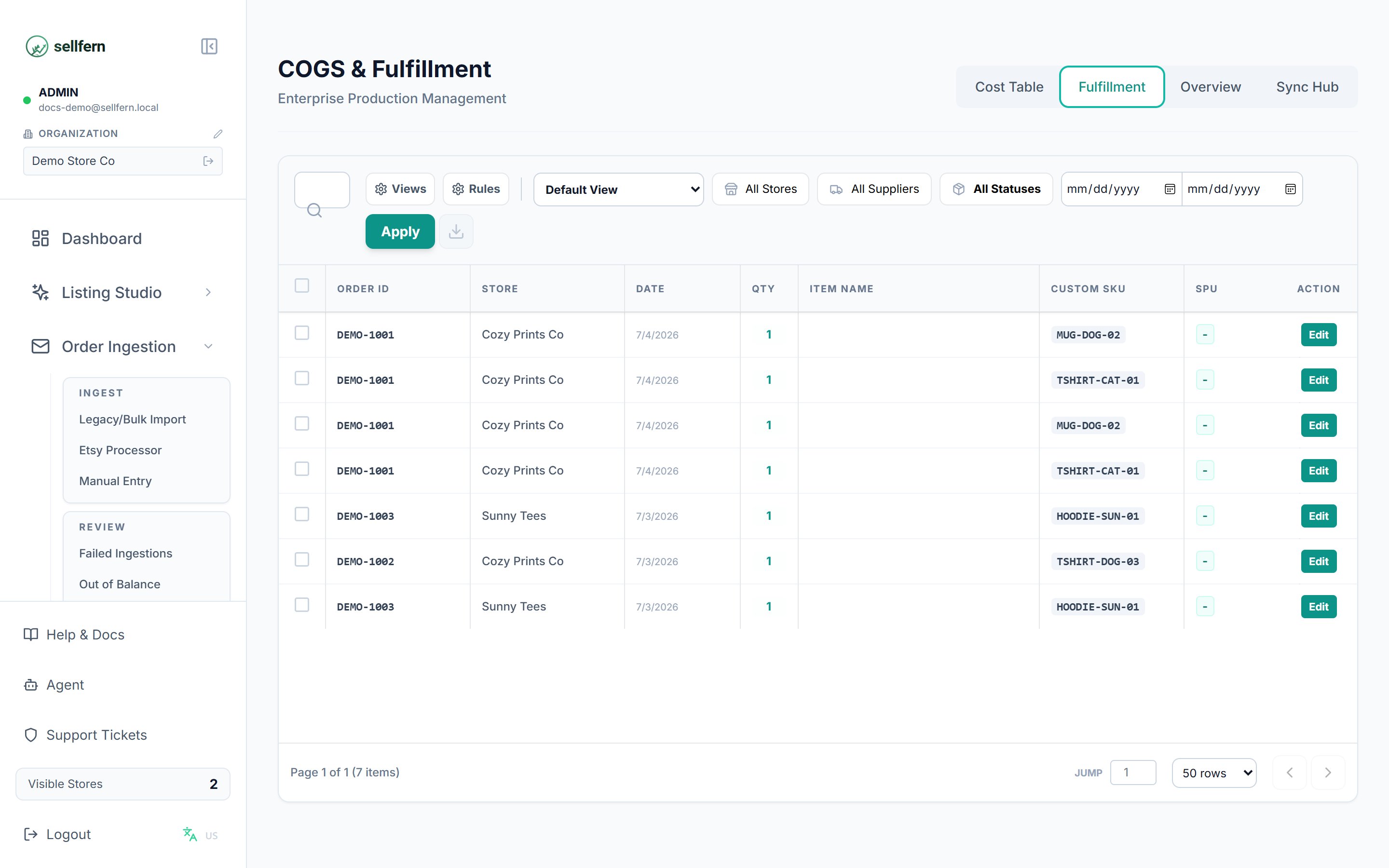
The Fulfillment tab — the queue of production-ready items, filterable by store, supplier, and status
Key actions on this tab:
- Add a tracking number (and carrier) — the item switches to Shipped automatically on save. Bulk-update by selecting multiple rows.
- Push Back — returns an item to Pending Cost if it was moved by mistake or the supplier rejected it.
- Export — downloads the current (filtered) view as an Excel production sheet for suppliers.
Supplier accounts see only this tab, and only the items assigned to their own supplier profile — this is how you hand work to a supplier without exposing anything else.
Overview tab
The Overview tab is a read-only consolidated view of every item across every status — from Pending Cost to Complete in one table.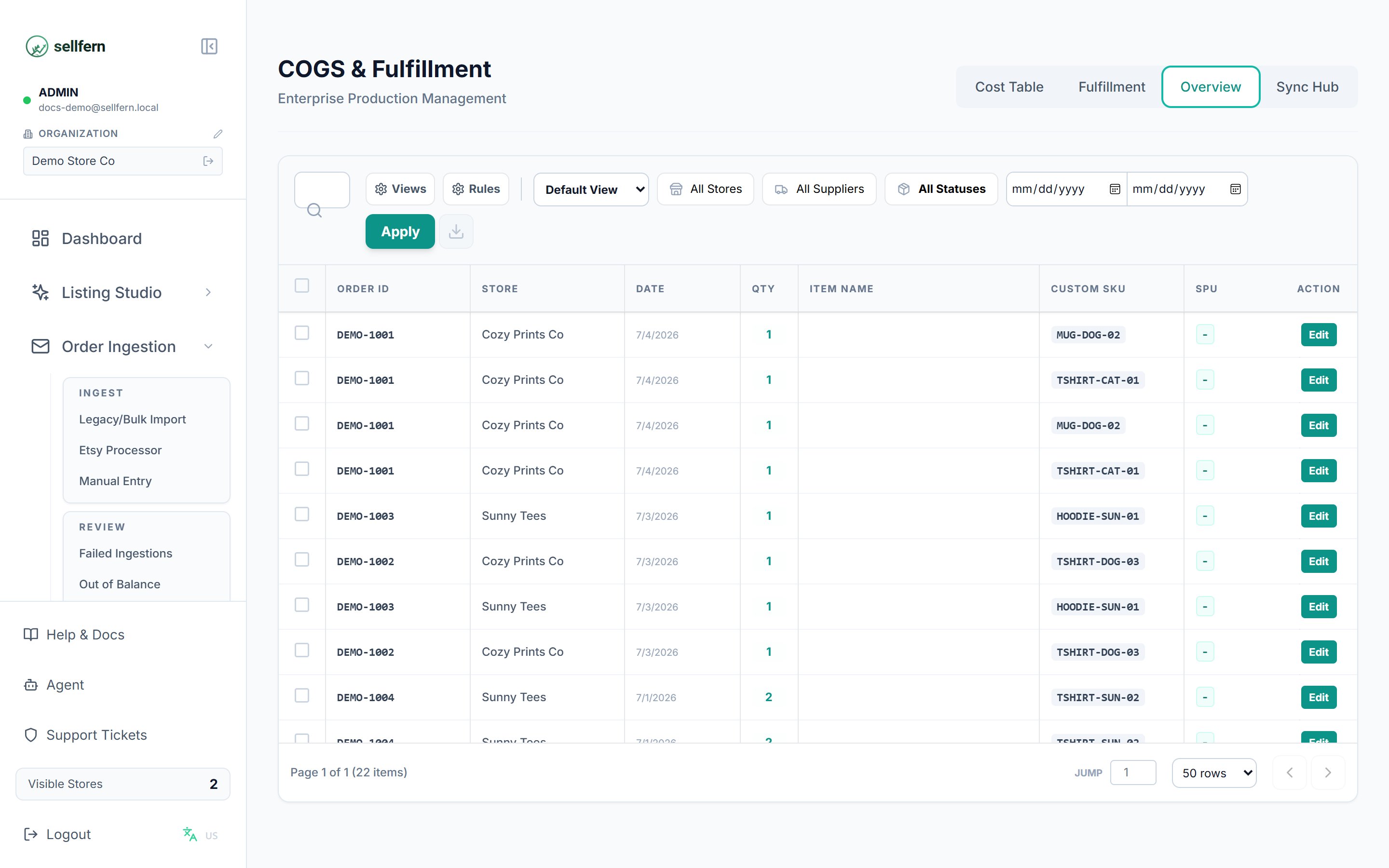
The Overview tab — every item in every status in one table, for lookups and comprehensive exports
- You need to find one specific order without knowing which stage it’s in.
- You need a comprehensive Excel export of all items for reconciliation.
- A manager wants a full-progress view without editing anything.
Sync Hub
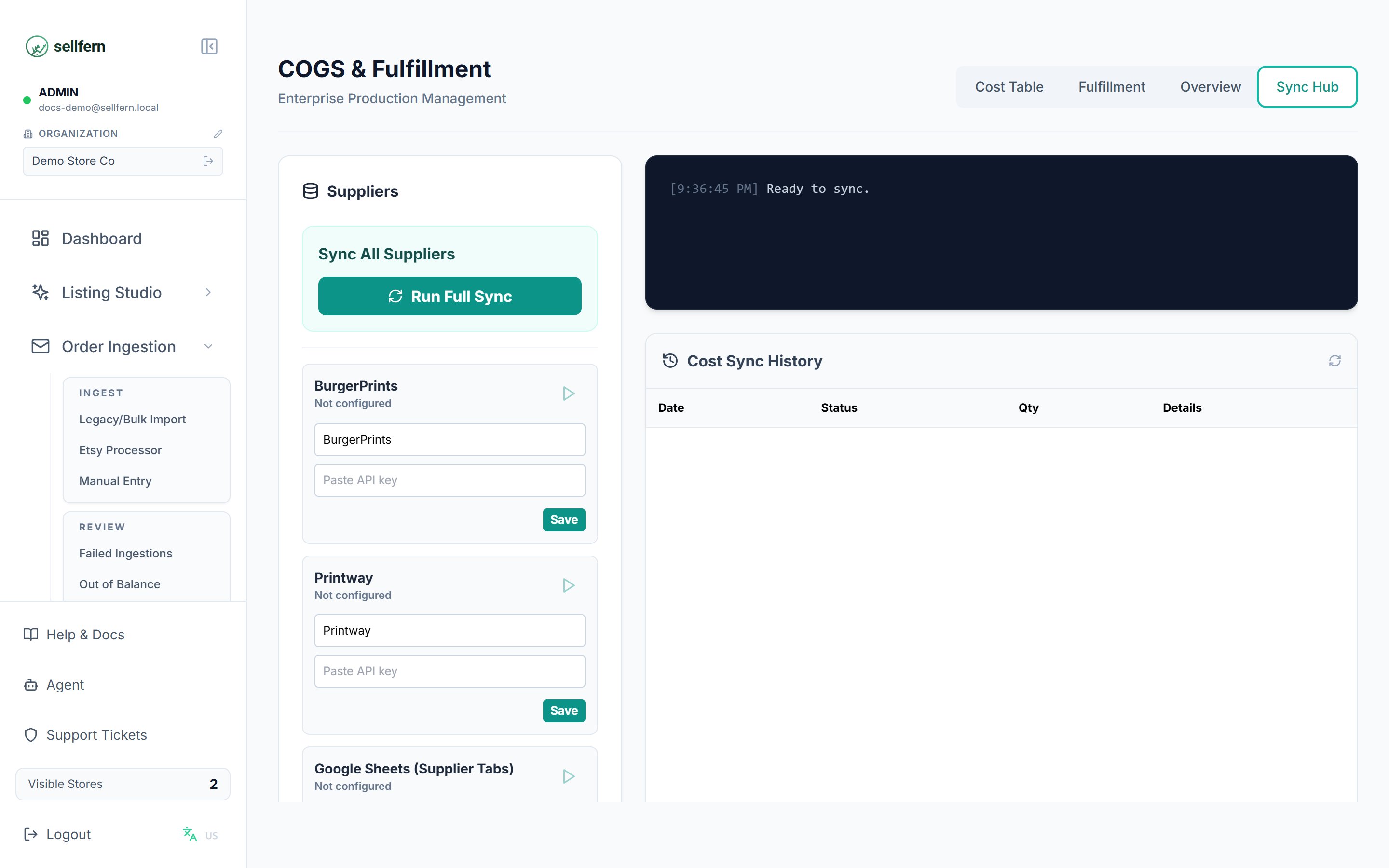
The Sync Hub — Printway, BurgerPrints, and Google Sheets connections plus the sync history
- Supported integrations include Printway, BurgerPrints, and Google Sheets.
- Manual sync pings connected supplier services for updates on active orders.
- Sync history shows recent sync operations, status, updated item counts, and error or success details.
Printway catalog enrichment
When Sellfern imports products from Printway into the system catalog, it merges the supplier response with the public Printway product page so products land with richer details out of the box:- Formatted product descriptions, short descriptions, and care or guideline text.
- Mockup gallery images and template artwork URLs.
- Processing-time-based lead times.
- Display price from the public storefront when supplier pricing is missing or zero.
- Deduplicated variants when the same SPU appears across multiple SKU arrays.
Views and Rules
Ledger tables support dynamic column layouts (Views) and automated text formatting/conversions (Rules) to clean up incoming order data and route them correctly.Saved Views
The Views engine allows you to save and manage custom layouts of the ledger tables.- Customize Layout: Use the Column Manager overlay (gear icon next to Views) to toggle column visibility, freeze critical columns (like SKU or Order ID), and rename column headers.
- Save Views: Name your custom layout and save it. You can make it Public (visible to your whole team) or Private (visible only to you).
- Switch Views: Use the dropdown list next to the gear icon to quickly toggle between saved layouts (e.g., an “Artwork View” focusing on design links, or a “Shipping View” focusing on carrier info and tracking codes).
Custom Text Rules
The Rules engine (gear icon next to Rules) lets you automate data cleanup and product mapping for incoming orders, reducing manual operational tasks.Rule Types
- Text Replacement: Search for a specific pattern in a target column (e.g.,
sku,color,size,personalization) and replace it with new text. - Add Prefix: Automatically prepend a string (e.g.,
VCN-) to a target column. - Case Conversion: Force text to UPPERCASE or lowercase.
- Size & Color Conversion: Translate arbitrary variations (e.g., “Size: S Hoodie” or “2X”) to standardized values (e.g., “S” or “2XL”) using a map.
- ID Service Lookup: Match shipping countries (e.g., “United States”) and map them to specific shipping line values.
- SPU Builder: Automatically construct target SKUs from SPU, size, color, and material components (separated by a custom separator like
-or/).
Automation Triggers
- Auto-run on initial ingestion: Automatically executes the rule for all new orders imported (via Store Sync, CSV import, etc.).
- Auto-apply on supplier assignment: Runs when a user assigns a supplier to an item. This can be configured to run in Silent mode (bypassing user confirmation) or prompt the user for approval.
Product Mapping Workflow (Catalog Setup)
The Rules engine works in tandem with the catalog configurations in Settings → Catalog to automate order matching and supplier routing:-
SKU Prefix Rules (Settings → Catalog → SKU Prefix Rules):
Incoming orders may have custom SKUs from storefronts (e.g., Etsy/Storefronts). Sellfern matches incoming SKUs to target SPUs using prefix rules:
- Prefix Match: Matches if the SKU starts with a prefix (e.g.,
VCN-HD). - Component Match: Splits the SKU by
-and matches the 3rd segment (e.g.,SS2D0290fromVCN-NEI-SS2D0290-CTV). - Once matched, it resolves the SKU to a Target SPU.
- Prefix Match: Matches if the SKU starts with a prefix (e.g.,
-
SPU Definitions (Settings → Catalog → SPU Definitions):
Maps resolved Target SPUs to their operational attributes:
- Product Type (e.g.,
2D,Embroidery) - Product Subtype (e.g.,
2D tshirt Adult) - Default Supplier (e.g.,
BurgerPrints,Printway)
- Product Type (e.g.,
Example Setup (Organization 1)
For Organization 1, SKUs are automatically resolved and routed using this exact catalog workflow:- Incoming SKU:
VCN-NEI-SS2D0290-CTV - SKU Prefix Rule: Matches the 3rd segment
SS2D0290(Component Match) and maps it to Target SPUSS2D0290. - SPU Definition: The SPU
SS2D0290is defined with Product Type2D, Product SubtypeSweatshirt, and Default SupplierBurgerPrints. - Result: On order ingestion, Sellfern automatically resolves the SPU attributes, fills in the default supplier as
BurgerPrints, and populates the cost fields without requiring manual support edits.