> ## Documentation Index
> Fetch the complete documentation index at: https://docs.sellfern.com/llms.txt
> Use this file to discover all available pages before exploring further.
# Users and Roles
> Manage Sellfern users, role-based access, store assignments, page permissions, and account activation.
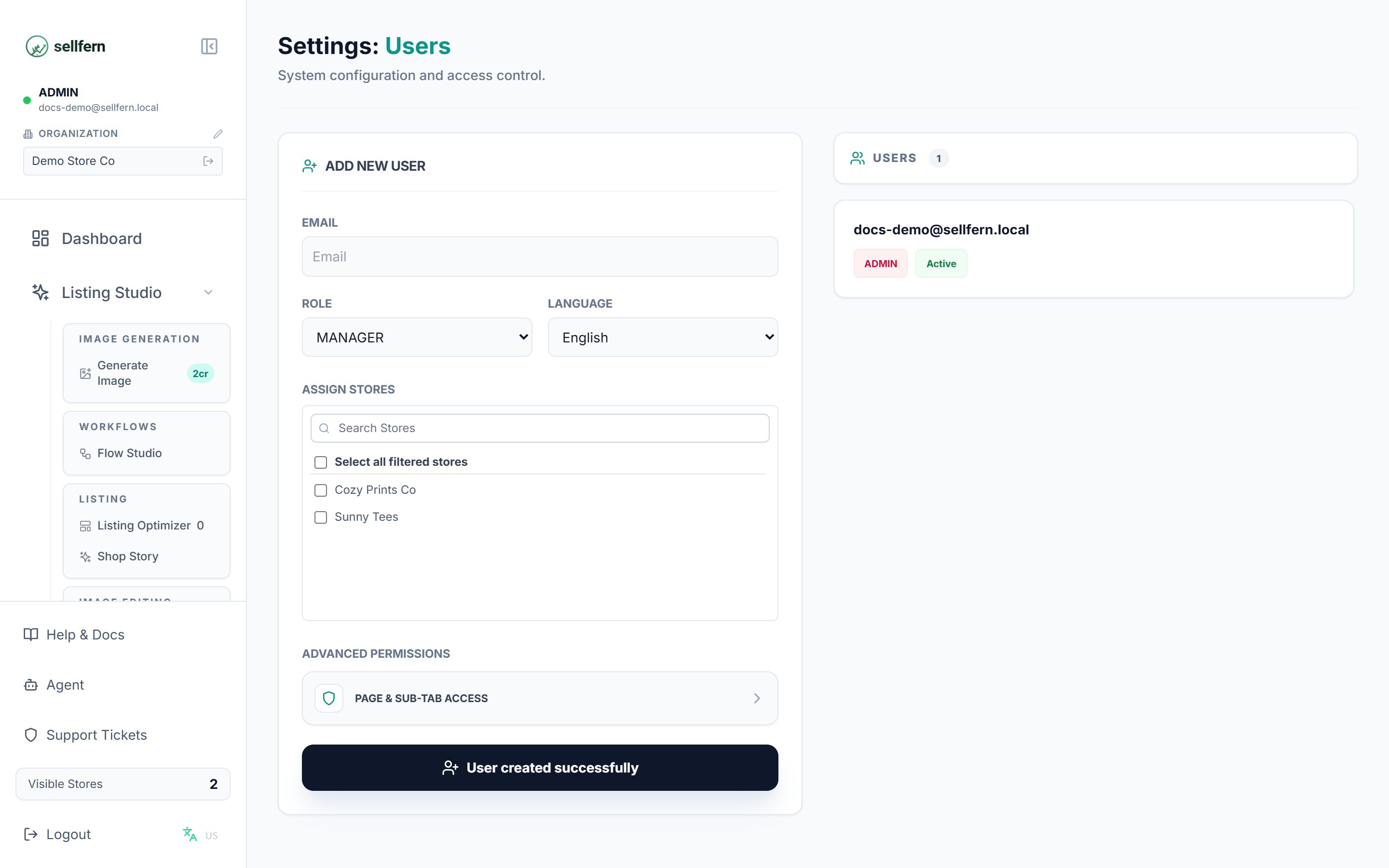
Sellfern's role-based access system controls which features and stores each team member can see. You assign a role when creating a user, then optionally refine access with store assignments and page-level permissions. Only users with the Admin role can access **Settings → Users**.
 ## User roles
| Role | Access scope | Store restrictions | Page permissions |
| ------------------- | -------------------------------------------------- | -------------------------------- | ----------------------------------------------------- |
| Admin | Full system access to all features and settings | All stores; cannot be restricted | Cannot be restricted by page-level permissions |
| Manager | Standard operational role | Assigned stores only | Configurable per user |
| Support | Limited access for customer support and operations | Assigned stores only | Configurable per user |
| Fulfillment Support | Fulfillment operations only | Scoped to suppliers | Limited to fulfillment-related features |
| Supplier | External partner access | Scoped to one supplier record | Very limited; no administrative or financial features |
Use Admin sparingly. For everyone else, start with the role that most closely matches their responsibilities, then use store assignments and page permissions to refine access.
## Creating a new user
Navigate to **Settings** in the sidebar, then select **Users**.
Enter the user's email address, select their role, and choose their preferred language.
For Supplier users, select the supplier record. For Fulfillment Support users, select accessible suppliers. For Manager and Support users, assign stores with the store selector.
Open **Page & Sub-Tab Access** to grant or restrict access to specific pages and nested tabs.
Click **Create User**. Sellfern sends an activation email and sets the user's status to **Pending**.
## Page and sub-tab permissions
The **Page & Sub-Tab Access** panel controls access to individual navigation items and nested tabs.
* **Pages** correspond to main navigation items such as Dashboard, Order Ingestion, Fulfillment, and Analytics.
* **Sub-tabs** are features within each page.
* Checking a page grants access to its sub-tabs.
* After enabling a page, you can uncheck specific sub-tabs to restrict access.
This is useful when a team member needs part of a page but not every tab. Admin users have all permissions enabled by default and cannot be restricted through this panel.
## Managing existing users
To edit a user, hover over their card in the user list and click the **Edit** icon. The user's current settings populate the form. Make changes and click **Update User**.
User statuses include:
* **Active** — the user can log in and access the system.
* **Inactive** — login is blocked.
* **Pending** — activation email has been sent but the user has not set a password.
## User activation flow
When you create a user, Sellfern sends an activation email. The account remains **Pending** until the user clicks the link and sets a password. After activation, the status changes to **Active**.
If a new team member does not receive the email, ask them to check spam and verify the address was entered correctly.
Deleting a user is permanent. If you may need to restore access later, set the user to **Inactive** instead.
## API and automation guidance
User-management screens are product administration workflows. Public integrations should use the reviewed V1 documentation in the [developer quickstart](/developers/quickstart) and [API Reference](/api-reference/order-items/list-order-items).
## User roles
| Role | Access scope | Store restrictions | Page permissions |
| ------------------- | -------------------------------------------------- | -------------------------------- | ----------------------------------------------------- |
| Admin | Full system access to all features and settings | All stores; cannot be restricted | Cannot be restricted by page-level permissions |
| Manager | Standard operational role | Assigned stores only | Configurable per user |
| Support | Limited access for customer support and operations | Assigned stores only | Configurable per user |
| Fulfillment Support | Fulfillment operations only | Scoped to suppliers | Limited to fulfillment-related features |
| Supplier | External partner access | Scoped to one supplier record | Very limited; no administrative or financial features |
Use Admin sparingly. For everyone else, start with the role that most closely matches their responsibilities, then use store assignments and page permissions to refine access.
## Creating a new user
Navigate to **Settings** in the sidebar, then select **Users**.
Enter the user's email address, select their role, and choose their preferred language.
For Supplier users, select the supplier record. For Fulfillment Support users, select accessible suppliers. For Manager and Support users, assign stores with the store selector.
Open **Page & Sub-Tab Access** to grant or restrict access to specific pages and nested tabs.
Click **Create User**. Sellfern sends an activation email and sets the user's status to **Pending**.
## Page and sub-tab permissions
The **Page & Sub-Tab Access** panel controls access to individual navigation items and nested tabs.
* **Pages** correspond to main navigation items such as Dashboard, Order Ingestion, Fulfillment, and Analytics.
* **Sub-tabs** are features within each page.
* Checking a page grants access to its sub-tabs.
* After enabling a page, you can uncheck specific sub-tabs to restrict access.
This is useful when a team member needs part of a page but not every tab. Admin users have all permissions enabled by default and cannot be restricted through this panel.
## Managing existing users
To edit a user, hover over their card in the user list and click the **Edit** icon. The user's current settings populate the form. Make changes and click **Update User**.
User statuses include:
* **Active** — the user can log in and access the system.
* **Inactive** — login is blocked.
* **Pending** — activation email has been sent but the user has not set a password.
## User activation flow
When you create a user, Sellfern sends an activation email. The account remains **Pending** until the user clicks the link and sets a password. After activation, the status changes to **Active**.
If a new team member does not receive the email, ask them to check spam and verify the address was entered correctly.
Deleting a user is permanent. If you may need to restore access later, set the user to **Inactive** instead.
## API and automation guidance
User-management screens are product administration workflows. Public integrations should use the reviewed V1 documentation in the [developer quickstart](/developers/quickstart) and [API Reference](/api-reference/order-items/list-order-items).