> ## Documentation Index
> Fetch the complete documentation index at: https://docs.sellfern.com/llms.txt
> Use this file to discover all available pages before exploring further.
# Products
> Manage your own listing catalog in My Products and browse the fulfillment-ready system catalog in All Products.
The **Products** menu in the sidebar contains two workspaces:
Your organization's listing catalog — titles, descriptions, images, prices, tags, and design links for every SKU you sell.
The system master catalog — fulfillment-ready blank products from integrated suppliers, with variants, base prices, and shipping fees.
## My Products
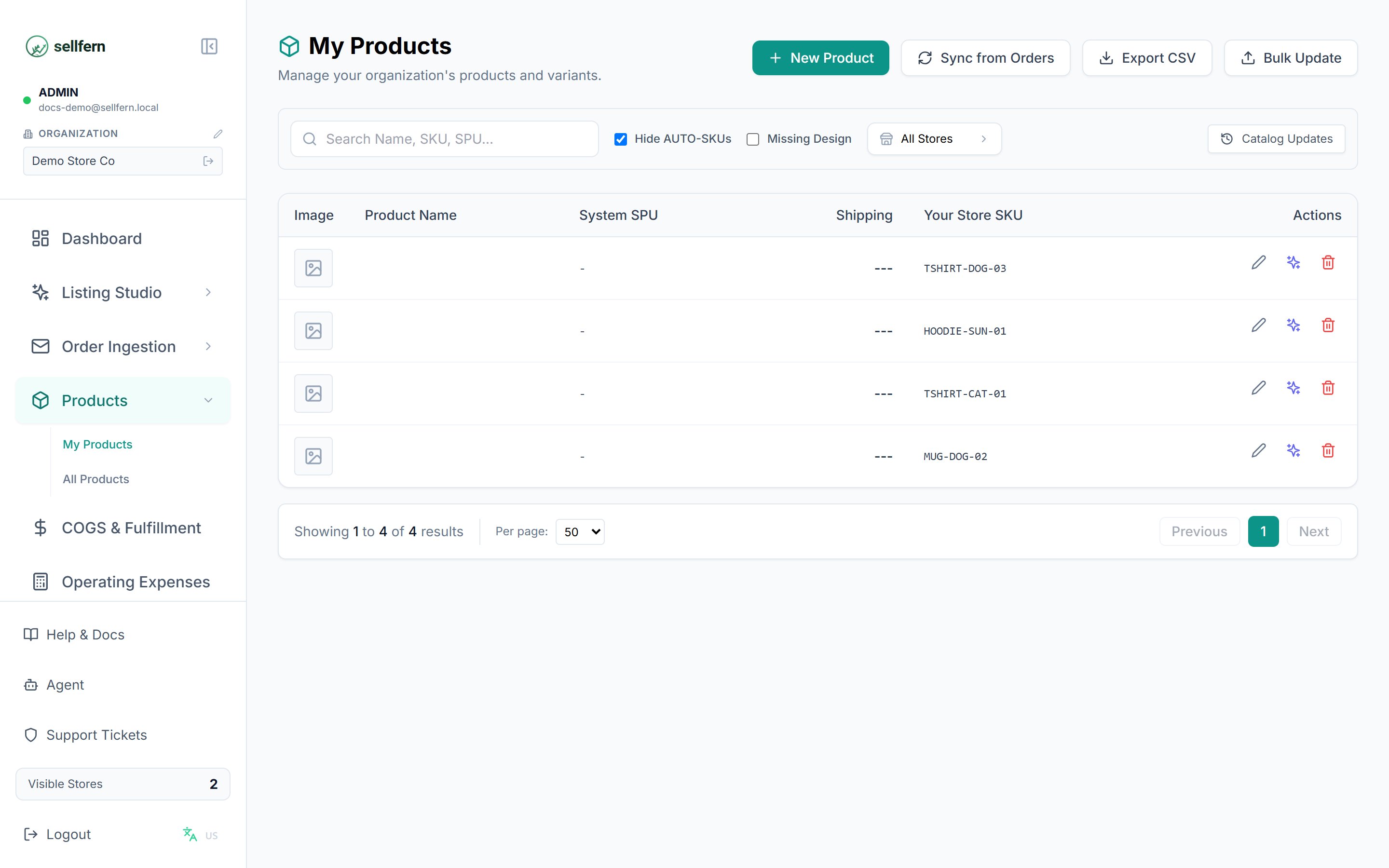
**My Products** is where you manage your own listing content. Each product has a SKU, title, rich-text description, price, tags, images, videos, a design link, and the stores/platforms where it is listed.
 ### Finding and filtering products
* **Search** by SKU or title.
* **Store filter** — select one or more stores.
* **Exclude auto-created products** — hide records the system generated automatically from orders (on by default).
* **Missing design link** — show only products without an artwork URL, so designers know what to fill in.
* The list is paginated (50 products per page by default).
### Adding and editing products
Click **Add Product** to create one, or click a product in the list to open its detail page.
Enter the SKU, title, description (supports bold/italic, lists, text color, and more), price, tags, and upload images/videos.
Paste the artwork file URL into the **Design Link** field. This link is reused during cost assignment in COGS & Fulfillment.
Click **Save**. The product appears in the list immediately and is searchable.
### Syncing from your store
The **Sync** button pulls listings from a connected store into Sellfern:
* When listings are new or changed, Sellfern shows a **pending updates** count.
* Open the sync modal to review each change, compare old and new content, then **Apply** items individually or **Apply All** in bulk.
* The sync result shows how many products were added and updated.
### Sending to Listing Studio
From a product you can select images and send them straight to [Listing Studio](/features/listing-studio) tools (Redesign, Remove BG, Upscale, Mockup, and more) without downloading and re-uploading. Generated results can be attached back to the product.
### Import / Export
* **Export** the product list to a file for bulk editing in a spreadsheet.
* **Import** the edited file to update many products at once.
## All Products
**All Products** is the system-managed master catalog — fulfillment-ready blank products imported from integrated suppliers (for example, Printway). Use it to:
### Finding and filtering products
* **Search** by SKU or title.
* **Store filter** — select one or more stores.
* **Exclude auto-created products** — hide records the system generated automatically from orders (on by default).
* **Missing design link** — show only products without an artwork URL, so designers know what to fill in.
* The list is paginated (50 products per page by default).
### Adding and editing products
Click **Add Product** to create one, or click a product in the list to open its detail page.
Enter the SKU, title, description (supports bold/italic, lists, text color, and more), price, tags, and upload images/videos.
Paste the artwork file URL into the **Design Link** field. This link is reused during cost assignment in COGS & Fulfillment.
Click **Save**. The product appears in the list immediately and is searchable.
### Syncing from your store
The **Sync** button pulls listings from a connected store into Sellfern:
* When listings are new or changed, Sellfern shows a **pending updates** count.
* Open the sync modal to review each change, compare old and new content, then **Apply** items individually or **Apply All** in bulk.
* The sync result shows how many products were added and updated.
### Sending to Listing Studio
From a product you can select images and send them straight to [Listing Studio](/features/listing-studio) tools (Redesign, Remove BG, Upscale, Mockup, and more) without downloading and re-uploading. Generated results can be attached back to the product.
### Import / Export
* **Export** the product list to a file for bulk editing in a spreadsheet.
* **Import** the edited file to update many products at once.
## All Products
**All Products** is the system-managed master catalog — fulfillment-ready blank products imported from integrated suppliers (for example, Printway). Use it to:
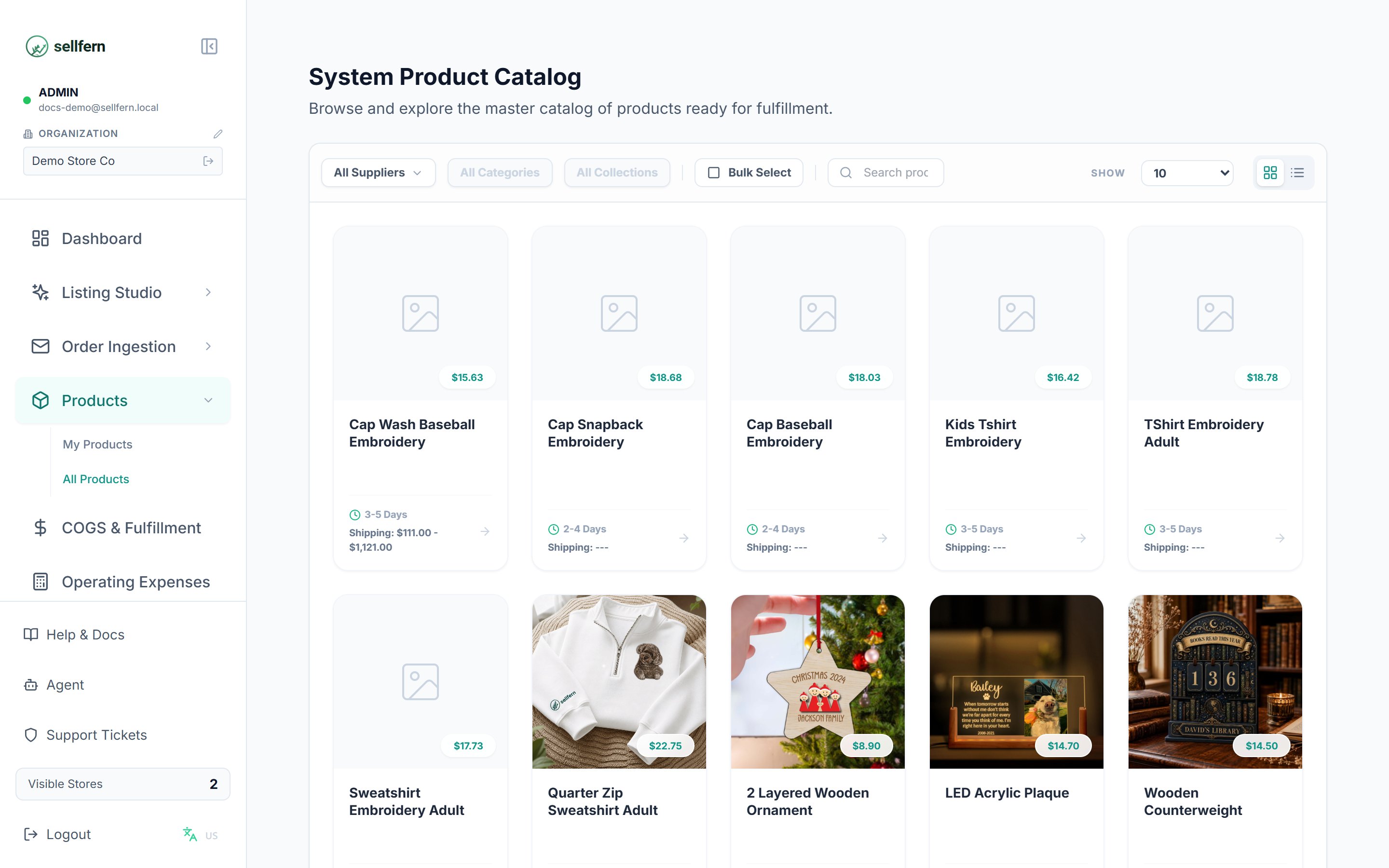 * **Browse and explore** products by category, product type, and supplier.
* **Open detail pages** with full descriptions, mockup galleries, variant tables (size/color), base prices, lead times, and per-region shipping fees.
* **Pick a base product** for your next listing — knowing costs and production time before you list.
The **Explore** page (`/system-products/explore`) is viewable without logging in, which makes it easy to share the catalog with partners. Full supplier pricing requires login.
## How products relate to orders
The mapping between marketplace SKUs and internal products is configured in **Settings → SPU Definitions** and **SKU Prefix Rules** — see the [Settings Overview](/settings/overview). When orders are ingested, Sellfern uses those rules to recognize the product, which auto-fills the default supplier and costs during fulfillment.
## Access
All roles (Admin, Manager, Support, Fulfillment Support, Supplier) can be granted access to the Products menu. Access to each tab (**My Products** / **All Products**) is adjusted in **Settings → Users → Page & Sub-Tab Access**.
* **Browse and explore** products by category, product type, and supplier.
* **Open detail pages** with full descriptions, mockup galleries, variant tables (size/color), base prices, lead times, and per-region shipping fees.
* **Pick a base product** for your next listing — knowing costs and production time before you list.
The **Explore** page (`/system-products/explore`) is viewable without logging in, which makes it easy to share the catalog with partners. Full supplier pricing requires login.
## How products relate to orders
The mapping between marketplace SKUs and internal products is configured in **Settings → SPU Definitions** and **SKU Prefix Rules** — see the [Settings Overview](/settings/overview). When orders are ingested, Sellfern uses those rules to recognize the product, which auto-fills the default supplier and costs during fulfillment.
## Access
All roles (Admin, Manager, Support, Fulfillment Support, Supplier) can be granted access to the Products menu. Access to each tab (**My Products** / **All Products**) is adjusted in **Settings → Users → Page & Sub-Tab Access**.