> ## Documentation Index
> Fetch the complete documentation index at: https://docs.sellfern.com/llms.txt
> Use this file to discover all available pages before exploring further.
# Payroll
> Manage recurring expenses and employee payroll — frequency, social insurance, currency, and payout history.
**Payroll** (Admin only) manages your organization's recurring expenses — primarily employee salaries, but it works for any repeating cost such as office rent or annual software subscriptions. Each entry automatically generates an [Operating Expense](/features/operating-expenses) on schedule, so net-profit reporting always reflects staffing costs without monthly manual entry.
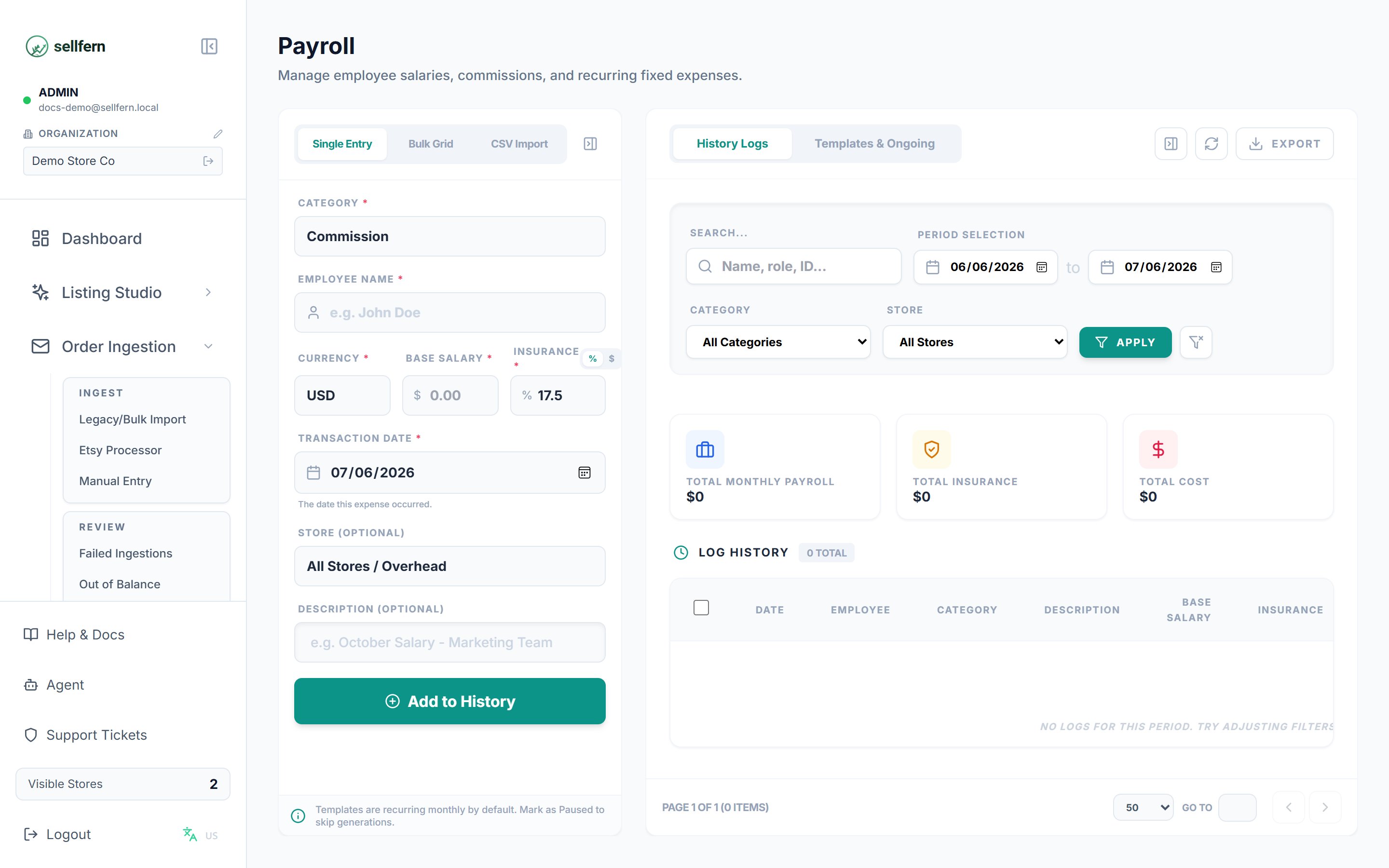 ## Creating a recurring entry
Go to **Payroll** in the sidebar (requires the Admin role).
Click **Add** and fill in:
* **Category** — for example Salary or Office Rent. Payroll-group categories are configured in **Settings → Expense Categories**.
* **Employee name** — for salary entries.
* **Base amount** and **currency** (multi-currency is supported, e.g. VND).
* **Frequency** — Monthly, Annually, Weekly, or One-off.
* **Store** (optional) — assign the cost to a specific store, or leave blank to treat it as a general expense.
For salary entries, add **social insurance** in one of two ways:
* **Percentage** — enter a rate; the system computes the insurance amount from the base salary.
* **Fixed amount** — enter the insurance amount directly.
Total cost = base salary + insurance.
After saving, each entry shows its **next generation date**. On that date, Sellfern automatically creates the corresponding expense record.
## Managing existing entries
* **Activate / deactivate** — inactive entries stop generating expenses but keep their history.
* **Edit** — changes to amount, frequency, or insurance apply to future generations only; history is not rewritten.
* **Delete** — removes only the recurring entry; previously generated expenses remain in Operating Expenses.
* **Search and filter** by category, employee, and store.
## Payout history
The history tab lists generated payouts per period, with a per-currency summary table:
| Column | Meaning |
| --------------- | ---------------------------------- |
| Total base | Sum of base salaries in the period |
| Total insurance | Sum of computed social insurance |
| Total cost | Base + insurance |
The history can be **exported** for accounting reconciliation.
## Effect on reporting
Expenses generated from Payroll count as **Operating Expenses**, and are therefore subtracted from Gross Profit when computing **Net Profit** in [Analytics](/features/analytics). If a month's payroll has not been generated (for example, the entry was deactivated), that month's net profit will appear higher than reality.
## Creating a recurring entry
Go to **Payroll** in the sidebar (requires the Admin role).
Click **Add** and fill in:
* **Category** — for example Salary or Office Rent. Payroll-group categories are configured in **Settings → Expense Categories**.
* **Employee name** — for salary entries.
* **Base amount** and **currency** (multi-currency is supported, e.g. VND).
* **Frequency** — Monthly, Annually, Weekly, or One-off.
* **Store** (optional) — assign the cost to a specific store, or leave blank to treat it as a general expense.
For salary entries, add **social insurance** in one of two ways:
* **Percentage** — enter a rate; the system computes the insurance amount from the base salary.
* **Fixed amount** — enter the insurance amount directly.
Total cost = base salary + insurance.
After saving, each entry shows its **next generation date**. On that date, Sellfern automatically creates the corresponding expense record.
## Managing existing entries
* **Activate / deactivate** — inactive entries stop generating expenses but keep their history.
* **Edit** — changes to amount, frequency, or insurance apply to future generations only; history is not rewritten.
* **Delete** — removes only the recurring entry; previously generated expenses remain in Operating Expenses.
* **Search and filter** by category, employee, and store.
## Payout history
The history tab lists generated payouts per period, with a per-currency summary table:
| Column | Meaning |
| --------------- | ---------------------------------- |
| Total base | Sum of base salaries in the period |
| Total insurance | Sum of computed social insurance |
| Total cost | Base + insurance |
The history can be **exported** for accounting reconciliation.
## Effect on reporting
Expenses generated from Payroll count as **Operating Expenses**, and are therefore subtracted from Gross Profit when computing **Net Profit** in [Analytics](/features/analytics). If a month's payroll has not been generated (for example, the entry was deactivated), that month's net profit will appear higher than reality.