> ## Documentation Index
> Fetch the complete documentation index at: https://docs.sellfern.com/llms.txt
> Use this file to discover all available pages before exploring further.
# Order Ingestion
> Import orders into Sellfern from Gmail, CSV files, or manual entry.
Order Ingestion is how orders enter Sellfern. Every order that flows through costing, fulfillment, and reporting begins here. You can bring orders in from Gmail, a CSV file, or manual entry depending on how your team works.
 Connect a Google account and let Sellfern scan your inbox for Etsy order confirmation emails on a schedule you control. Requires setup by your admin — see below.
Install a Chrome/Edge extension to fetch orders directly from the Etsy Mission Control API in your browser session and push them to Sellfern.
Upload historical or external orders from a spreadsheet. Sellfern previews the data before committing anything.
Create or edit a single order directly for custom orders, corrections, and failed-ingestion cleanup.
Upload Etsy invoice PDFs to convert them into production sheets, with automatic address fixes, SKU repairs, and data enrichment.
In the sidebar, the **Order Ingestion** menu is split into three groups: **Ingest** (the import methods), **Review** (Failed Ingestions, Out of Balance, Store Mismatch — with red/amber alert counters), and **History** (Sync History).
## Etsy Browser Extension
For Etsy sellers who want to sync orders directly without setting up Gmail Live Sync, Sellfern provides a Chrome/Edge browser extension. This extension scrapes orders directly from the Etsy Mission Control API in your browser session and pushes them to Sellfern.
### Setup and Configuration
Install the extension from the official web stores:
* **Chrome**: [Chrome Web Store](https://chromewebstore.google.com/detail/sellfern-etsy/ehildmppcmdnlclnbpbnigkolodanadj)
* **Edge**: [Edge Add-ons](https://microsoftedge.microsoft.com/addons/detail/sellfern-etsy/ngcfnobaoggjjljpliimoagnnclggigi)
Click the Sellfern extension icon in your browser toolbar and sign in directly using your Sellfern account email and password. If your account is associated with multiple organizations, select the active organization when prompted.
1. Open your Etsy Shop Manager tab in the same browser.
2. Open the Sellfern extension popup and click **Auto Detect**.
3. The extension will automatically detect your Etsy Shop ID and Store Name.
The detected Store Name must match one of the stores already created in your Sellfern account (**Settings → Stores**). If the store is not found, a warning will appear.
### Syncing Orders
1. Navigate to your Etsy Shop Manager or any Etsy page in the same browser.
2. Click the Sellfern extension icon to open the popup.
3. Select the **Order State** (e.g., New, Completed) and **Completed Date** timeframe if applicable.
4. Click **Fetch Orders** to load orders from Etsy.
5. Review the orders in the preview table, then click **Push to Sellfern** to ingest them.
## Gmail Live Sync
Gmail Live Sync connects a Google account to Sellfern and periodically scans that inbox for Etsy order confirmation emails. Each matching message is parsed for order data — buyer, items, SKUs, totals — and turned into an order automatically, on the schedule and search window you configure. Messages that don't parse cleanly land in **Failed Ingestions** instead of blocking the rest of the batch.
Gmail Live Sync is not self-serve. It requires a one-time setup on Sellfern's side (Google API access for your organization) before any account can be connected. If you want to use this service, contact your Sellfern admin to have it enabled — only after that can an Admin connect a Google account and run syncs.
## CSV bulk import
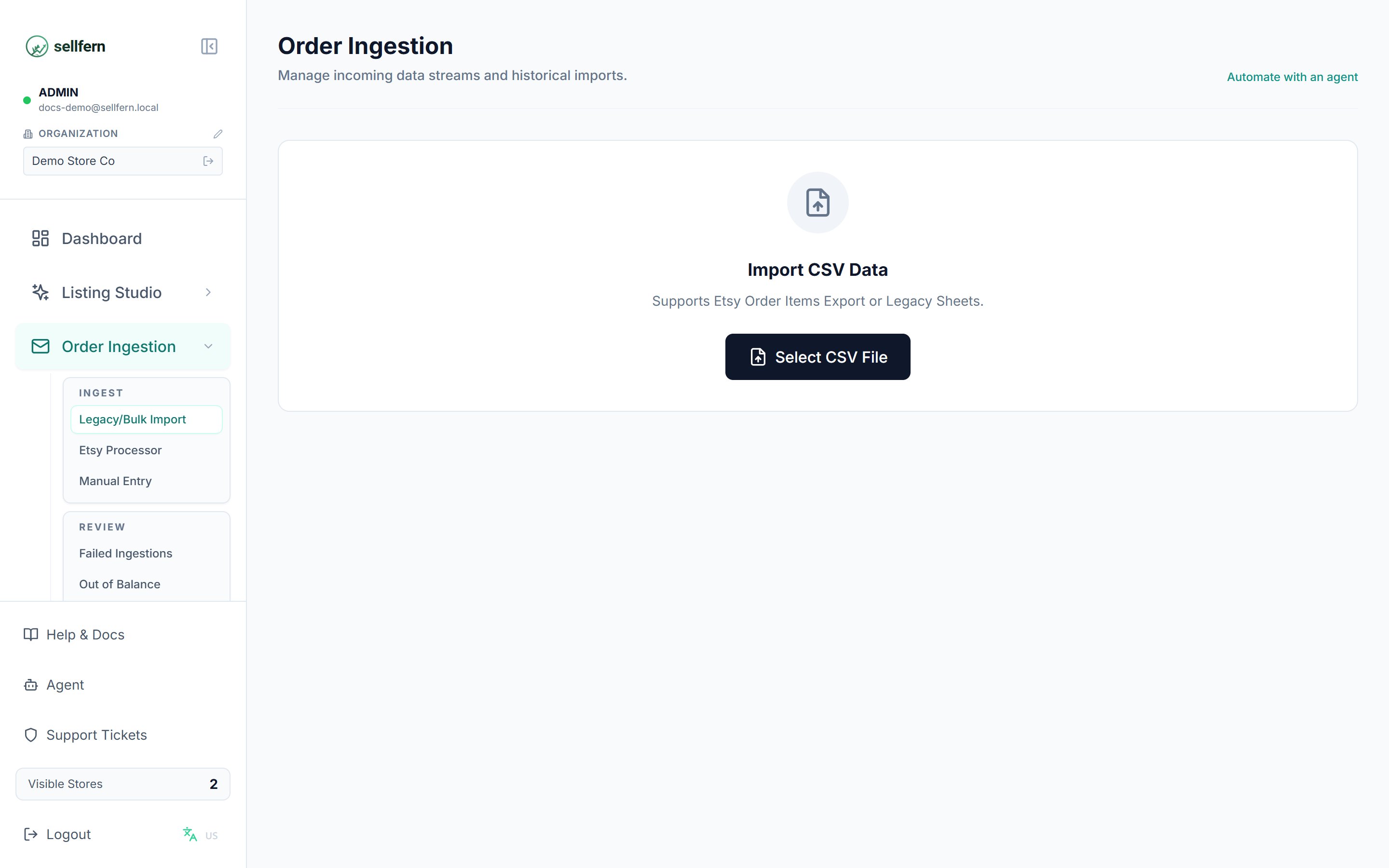
CSV bulk import, called **Legacy Bulk** in the app, lets you upload historical or spreadsheet-based orders.
Go to **Orders → Ingestion → Legacy Bulk**.
Click **Select CSV** and choose a `.csv` file from your computer.
Check the detected format, order count, first 50 preview rows, and financial fields before committing anything.
Click **Finalize Import** to commit parsed orders, or **Cancel** to discard the upload without saving anything.
## Etsy Invoice Processor
The Etsy Processor converts Etsy invoice PDFs into production sheets and enriches missing data.
Connect a Google account and let Sellfern scan your inbox for Etsy order confirmation emails on a schedule you control. Requires setup by your admin — see below.
Install a Chrome/Edge extension to fetch orders directly from the Etsy Mission Control API in your browser session and push them to Sellfern.
Upload historical or external orders from a spreadsheet. Sellfern previews the data before committing anything.
Create or edit a single order directly for custom orders, corrections, and failed-ingestion cleanup.
Upload Etsy invoice PDFs to convert them into production sheets, with automatic address fixes, SKU repairs, and data enrichment.
In the sidebar, the **Order Ingestion** menu is split into three groups: **Ingest** (the import methods), **Review** (Failed Ingestions, Out of Balance, Store Mismatch — with red/amber alert counters), and **History** (Sync History).
## Etsy Browser Extension
For Etsy sellers who want to sync orders directly without setting up Gmail Live Sync, Sellfern provides a Chrome/Edge browser extension. This extension scrapes orders directly from the Etsy Mission Control API in your browser session and pushes them to Sellfern.
### Setup and Configuration
Install the extension from the official web stores:
* **Chrome**: [Chrome Web Store](https://chromewebstore.google.com/detail/sellfern-etsy/ehildmppcmdnlclnbpbnigkolodanadj)
* **Edge**: [Edge Add-ons](https://microsoftedge.microsoft.com/addons/detail/sellfern-etsy/ngcfnobaoggjjljpliimoagnnclggigi)
Click the Sellfern extension icon in your browser toolbar and sign in directly using your Sellfern account email and password. If your account is associated with multiple organizations, select the active organization when prompted.
1. Open your Etsy Shop Manager tab in the same browser.
2. Open the Sellfern extension popup and click **Auto Detect**.
3. The extension will automatically detect your Etsy Shop ID and Store Name.
The detected Store Name must match one of the stores already created in your Sellfern account (**Settings → Stores**). If the store is not found, a warning will appear.
### Syncing Orders
1. Navigate to your Etsy Shop Manager or any Etsy page in the same browser.
2. Click the Sellfern extension icon to open the popup.
3. Select the **Order State** (e.g., New, Completed) and **Completed Date** timeframe if applicable.
4. Click **Fetch Orders** to load orders from Etsy.
5. Review the orders in the preview table, then click **Push to Sellfern** to ingest them.
## Gmail Live Sync
Gmail Live Sync connects a Google account to Sellfern and periodically scans that inbox for Etsy order confirmation emails. Each matching message is parsed for order data — buyer, items, SKUs, totals — and turned into an order automatically, on the schedule and search window you configure. Messages that don't parse cleanly land in **Failed Ingestions** instead of blocking the rest of the batch.
Gmail Live Sync is not self-serve. It requires a one-time setup on Sellfern's side (Google API access for your organization) before any account can be connected. If you want to use this service, contact your Sellfern admin to have it enabled — only after that can an Admin connect a Google account and run syncs.
## CSV bulk import
CSV bulk import, called **Legacy Bulk** in the app, lets you upload historical or spreadsheet-based orders.
Go to **Orders → Ingestion → Legacy Bulk**.
Click **Select CSV** and choose a `.csv` file from your computer.
Check the detected format, order count, first 50 preview rows, and financial fields before committing anything.
Click **Finalize Import** to commit parsed orders, or **Cancel** to discard the upload without saving anything.
## Etsy Invoice Processor
The Etsy Processor converts Etsy invoice PDFs into production sheets and enriches missing data.
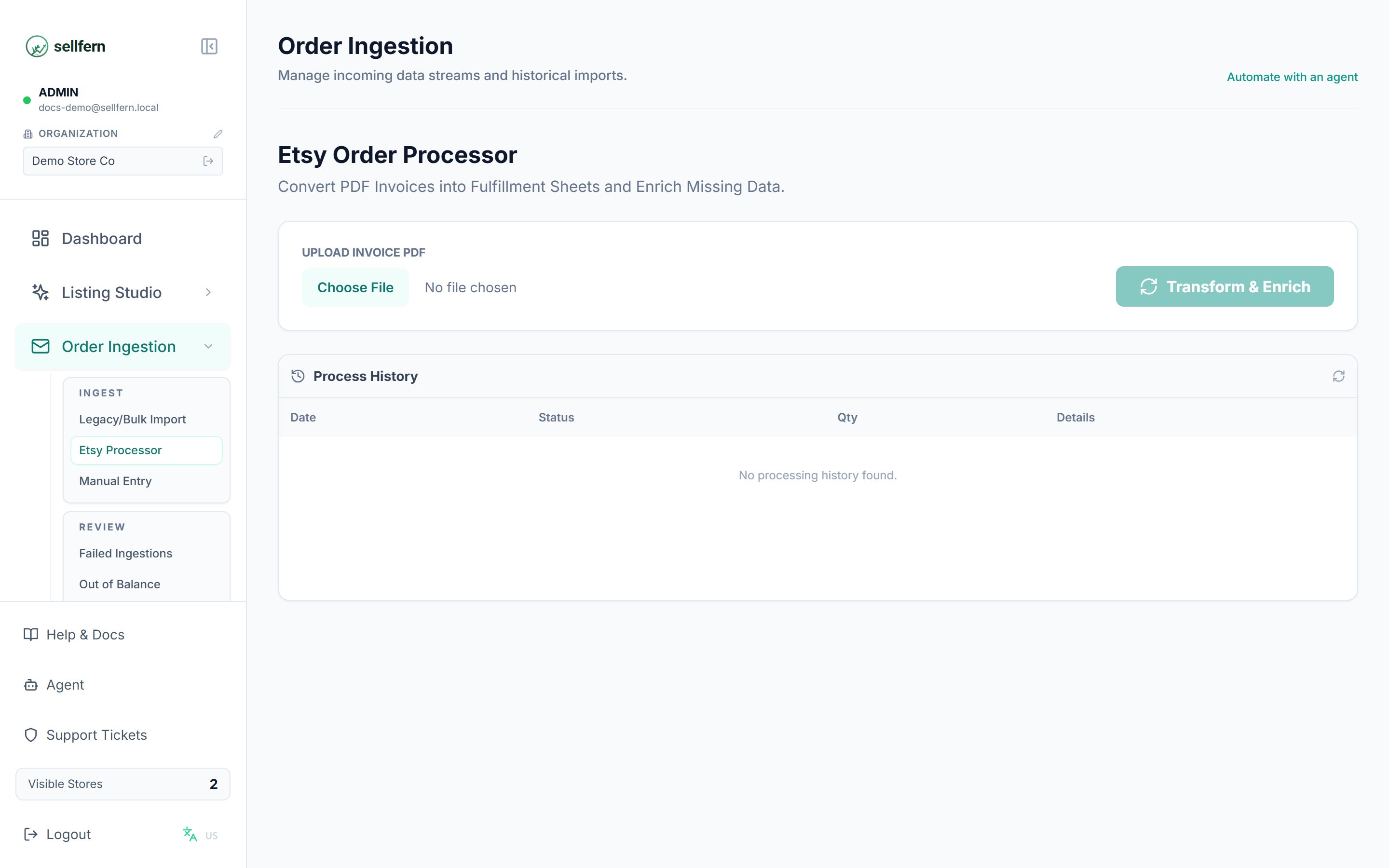 Go to **Order Ingestion → Etsy Processor**.
Select the invoice PDF downloaded from Etsy and click **Transform & Enrich**.
Sellfern parses the PDF and shows a preview table with counters: orders created, items created, addresses fixed, SKUs repaired, and newly discovered products.
Click **Save SKU Mappings** so the system remembers repaired SKUs for next time, and **Export Excel** if you need to send a production sheet to a supplier. The processing history appears below.
## Manual entry
Manual Entry lets you create or update a single order directly in Sellfern. Use it for custom orders, phone orders, wholesale work, corrections, and resolving failed ingestions or out-of-balance records.
Go to **Order Ingestion → Etsy Processor**.
Select the invoice PDF downloaded from Etsy and click **Transform & Enrich**.
Sellfern parses the PDF and shows a preview table with counters: orders created, items created, addresses fixed, SKUs repaired, and newly discovered products.
Click **Save SKU Mappings** so the system remembers repaired SKUs for next time, and **Export Excel** if you need to send a production sheet to a supplier. The processing history appears below.
## Manual entry
Manual Entry lets you create or update a single order directly in Sellfern. Use it for custom orders, phone orders, wholesale work, corrections, and resolving failed ingestions or out-of-balance records.
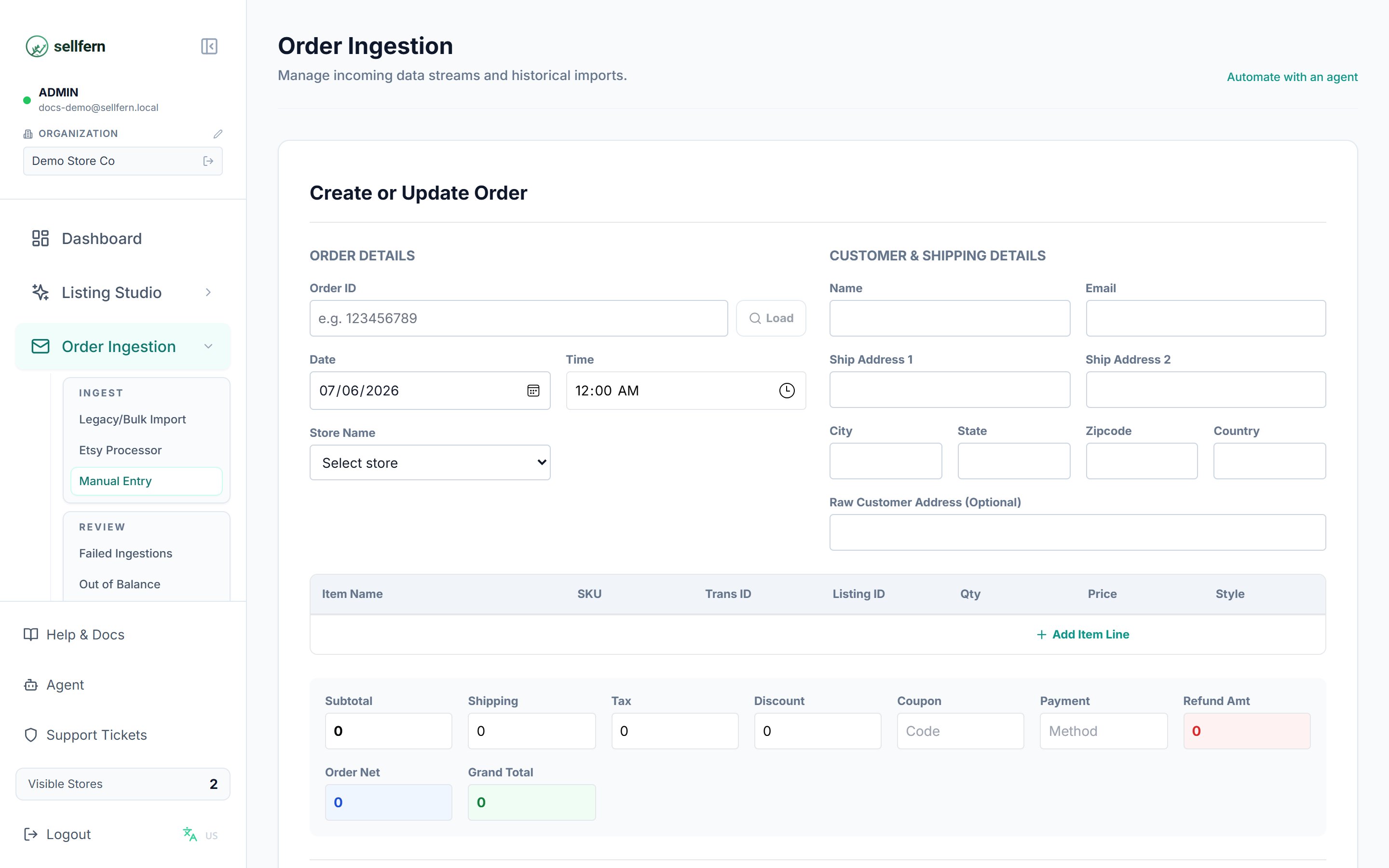 Key behaviors:
* **Order ID is required.**
* **At least one line item is required.**
* **Refund amount cannot be negative.** Enter the deduction amount as a positive value.
* If the store field is blank, Sellfern uses **Manual Entry** as the store name.
* If the customer name is blank, Sellfern uses **Walk-in**.
* Currency defaults to **USD**.
* Subtotal, shipping, tax, and discount changes automatically recalculate the total.
* An item's status becomes **Complete** when a base cost is provided; otherwise it stays **Pending Cost**.
To load and edit an existing order, enter the order ID and click the load action. Sellfern populates the form so you can make targeted corrections.
## Reviewing imports
After any import method, use the **Failed Ingestions** and **Out of Balance** review tabs to catch and fix problems.
### Failed ingestions
The **Failed Ingestions** tab lists source records that could not be parsed into orders. From here you can review the raw record and error context, open a failed record in Manual Entry, or delete failures that are no longer needed. When you resolve a failed ingestion through Manual Entry and save successfully, Sellfern deletes the failed-ingestion record automatically.
### Out of balance
The **Out of Balance** tab lists orders whose recorded totals do not match the detailed order math. Use the store filter, date range, and pagination controls to narrow the list, then open an order in Manual Entry to correct totals or line items.
### Store Mismatch
The **Store Mismatch** tab (Admin only) lists orders whose store name does not match any store configured in **Settings → Stores** — usually a typo in the source data or a store that hasn't been created yet. Reassign the order to the correct store so per-store reporting stays accurate.
### Sync History
The **Sync History** tab records every sync/import run, its timestamp, status, and record counts — use it to verify whether a batch was imported and whether it produced errors.
## Automation and API guidance
For supported public automation patterns, use the V1 developer documentation rather than internal app routes. Start with the [developer quickstart](/developers/quickstart) or the [API Reference](/api-reference/order-items/list-order-items).
## Troubleshooting
Connect a Gmail account first, or wait for the current sync to finish before starting a new one.
Enable popups for Sellfern in your browser settings, then click Connect again.
Reconnect the affected Google account from the Live Sync connection list.
Cancel the upload without finalizing, correct the CSV file, and upload it again.
Confirm the order has an Order ID, at least one line item, and any refund amount is entered as a positive number.
Key behaviors:
* **Order ID is required.**
* **At least one line item is required.**
* **Refund amount cannot be negative.** Enter the deduction amount as a positive value.
* If the store field is blank, Sellfern uses **Manual Entry** as the store name.
* If the customer name is blank, Sellfern uses **Walk-in**.
* Currency defaults to **USD**.
* Subtotal, shipping, tax, and discount changes automatically recalculate the total.
* An item's status becomes **Complete** when a base cost is provided; otherwise it stays **Pending Cost**.
To load and edit an existing order, enter the order ID and click the load action. Sellfern populates the form so you can make targeted corrections.
## Reviewing imports
After any import method, use the **Failed Ingestions** and **Out of Balance** review tabs to catch and fix problems.
### Failed ingestions
The **Failed Ingestions** tab lists source records that could not be parsed into orders. From here you can review the raw record and error context, open a failed record in Manual Entry, or delete failures that are no longer needed. When you resolve a failed ingestion through Manual Entry and save successfully, Sellfern deletes the failed-ingestion record automatically.
### Out of balance
The **Out of Balance** tab lists orders whose recorded totals do not match the detailed order math. Use the store filter, date range, and pagination controls to narrow the list, then open an order in Manual Entry to correct totals or line items.
### Store Mismatch
The **Store Mismatch** tab (Admin only) lists orders whose store name does not match any store configured in **Settings → Stores** — usually a typo in the source data or a store that hasn't been created yet. Reassign the order to the correct store so per-store reporting stays accurate.
### Sync History
The **Sync History** tab records every sync/import run, its timestamp, status, and record counts — use it to verify whether a batch was imported and whether it produced errors.
## Automation and API guidance
For supported public automation patterns, use the V1 developer documentation rather than internal app routes. Start with the [developer quickstart](/developers/quickstart) or the [API Reference](/api-reference/order-items/list-order-items).
## Troubleshooting
Connect a Gmail account first, or wait for the current sync to finish before starting a new one.
Enable popups for Sellfern in your browser settings, then click Connect again.
Reconnect the affected Google account from the Live Sync connection list.
Cancel the upload without finalizing, correct the CSV file, and upload it again.
Confirm the order has an Order ID, at least one line item, and any refund amount is entered as a positive number.