> ## Documentation Index
> Fetch the complete documentation index at: https://docs.sellfern.com/llms.txt
> Use this file to discover all available pages before exploring further.
# Cost & Fulfillment
> Assign supplier costs, prepare items for production, track fulfillment status, and record shipment details in Sellfern.
The Ledger is Sellfern's post-ingestion hub. Once an order enters the system, the Ledger is where you assign costs, move items through production, and record tracking numbers when suppliers ship. Every ingested order item starts as a pending cost item waiting to be prepared for fulfillment.
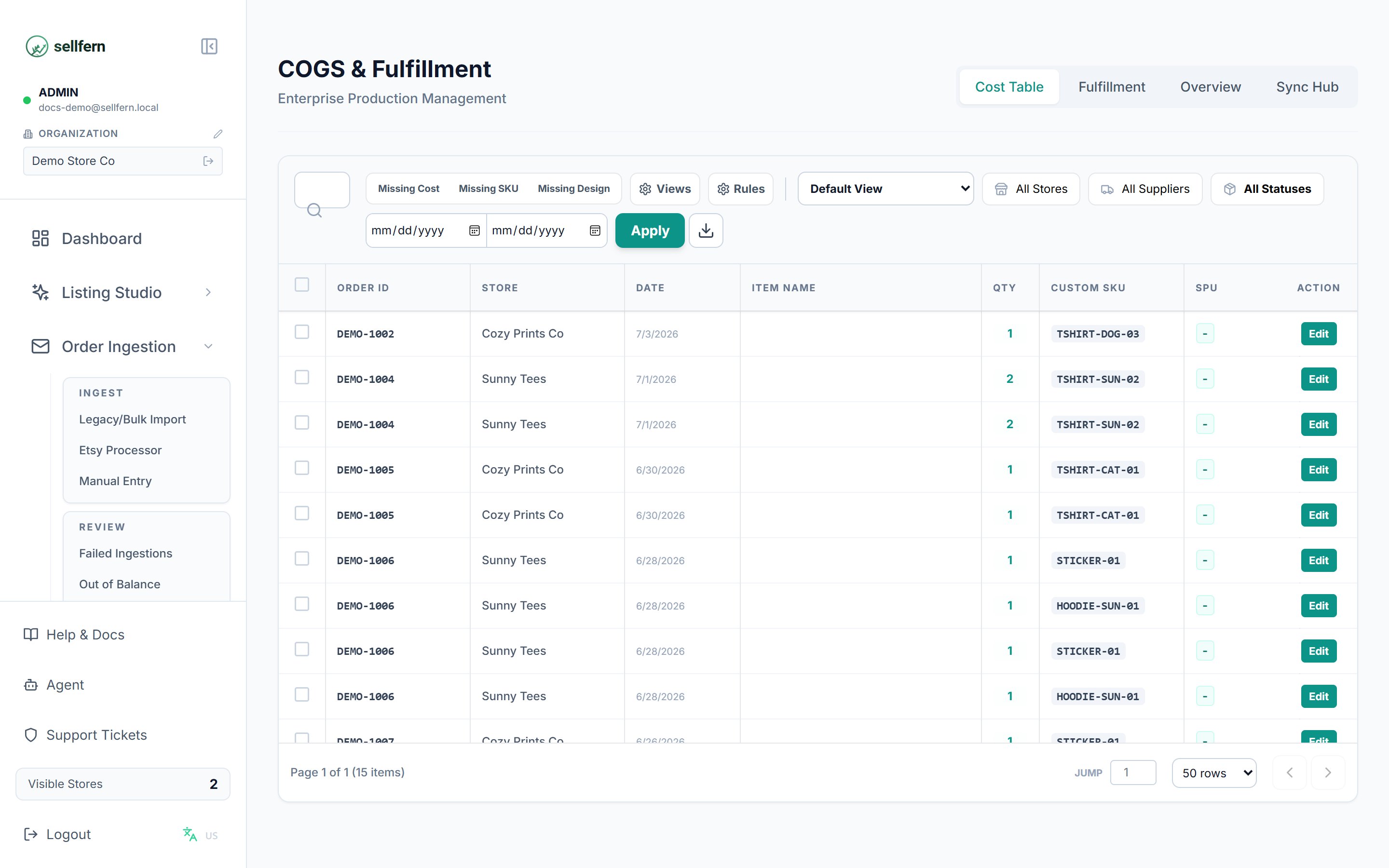
The **COGS & Fulfillment** page has **four tabs** in the top-right corner, one per work stage:
| Tab | Purpose | Used mostly by |
| --------------- | ------------------------------------------------------- | ----------------------------- |
| **Cost Table** | Fill in cost, SKU, design, and supplier for new items | Support |
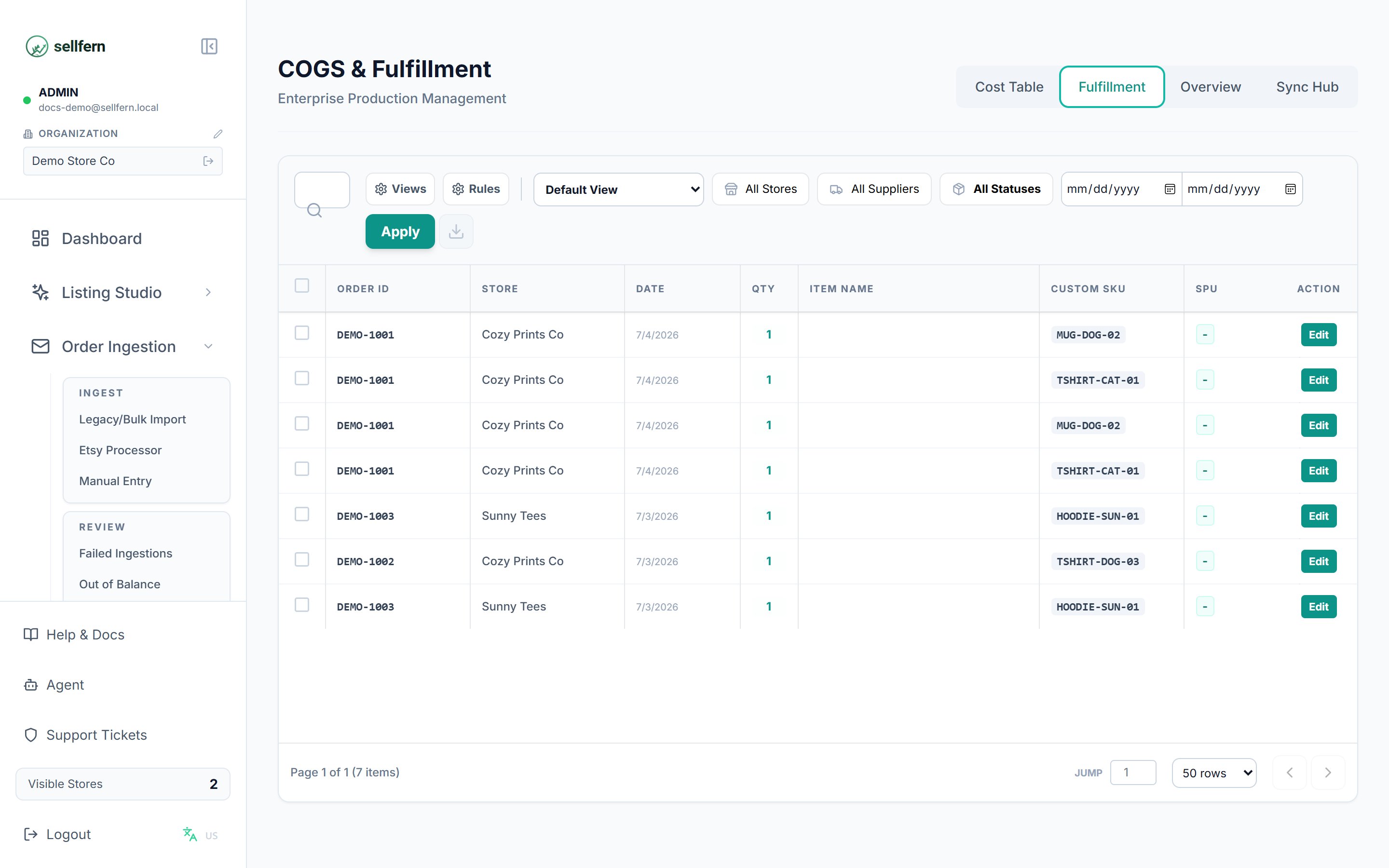
| **Fulfillment** | Track production and update tracking numbers | Fulfillment Support, Supplier |
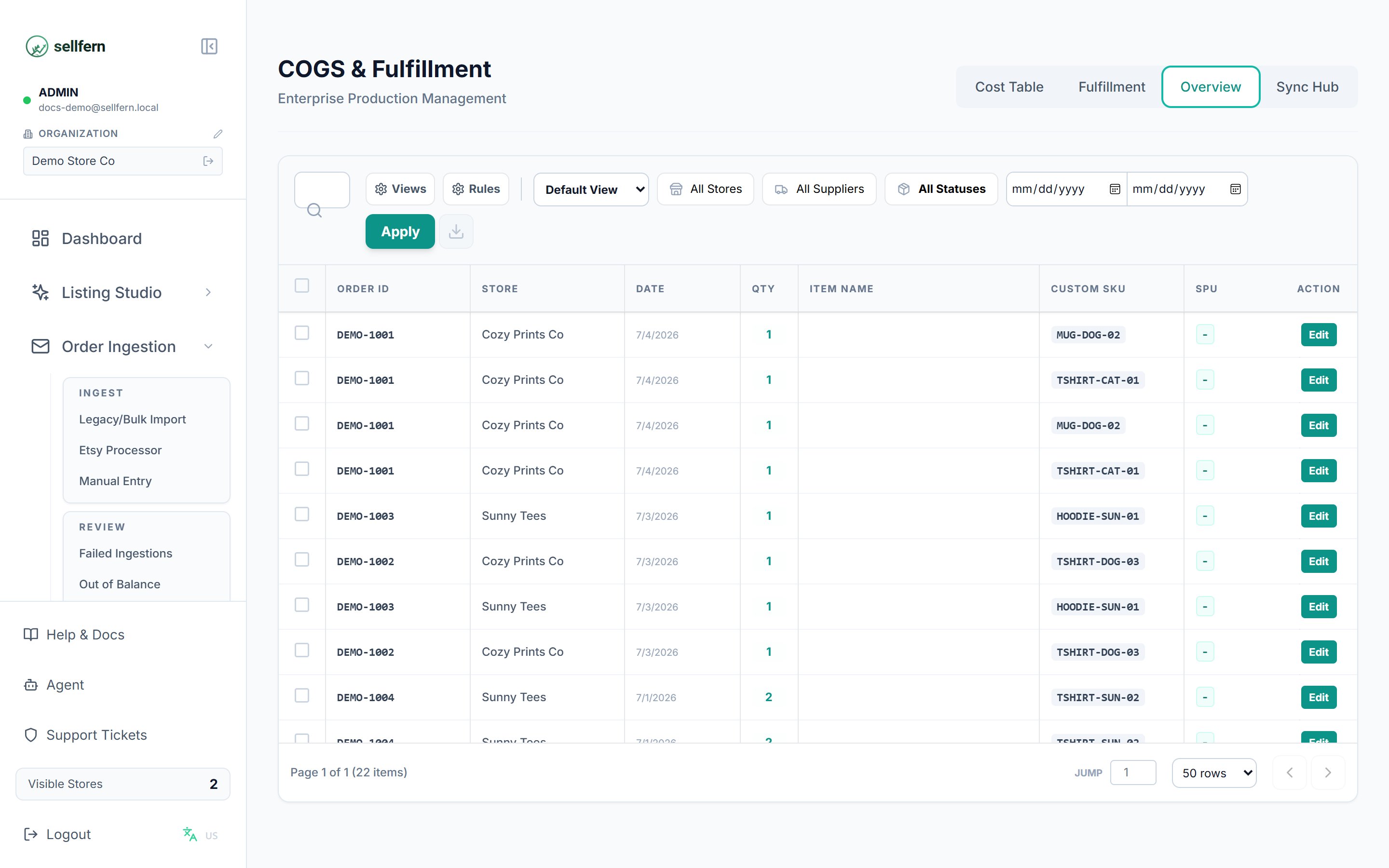
| **Overview** | Read-only consolidated view of every item, every status | Manager |
| **Sync Hub** | Auto-pull costs/tracking from integrated suppliers | Admin |
Above the table on every tab sits a **shared toolbar**: search box, quick filters, **Views** (saved column layouts), **Rules** (text replacement rules), the **store / supplier / status** filters, a date range, **Apply**, and the **Excel export** button.
## Cost Table tab
When an order is first ingested, its line items appear in the **Cost Table** with a status of **Pending Cost**. Your goal on this tab is to fill in the details a supplier needs before items move to the fulfillment queue.
 ### Required fields for production
Before you can mark an item as ready, it needs:
1. **Base Cost** — the monetary cost to produce and ship the item.
2. **Custom SKU** — the exact SKU your supplier recognizes.
3. **Design Link** — a URL pointing to the artwork file.
4. **Supplier** — the assigned manufacturer, such as Printway or BurgerPrints.
### Editing items
* **Inline editing** — double-click Base Cost or Supplier to edit directly in the table. Save with the green checkmark or cancel with the red X.
* **Bulk editing** — select multiple rows to reveal the Action Bar, then apply a bulk Base Cost, bulk Supplier, or tracking-code update.
### Moving items to fulfillment
Once an item has all required fields, select it and click **Mark as Ready**. The item's status changes from **Pending Cost** to **New** and it moves to the Fulfillment tab.
Use **Missing Cost**, **Missing SKU**, and **Missing Design** quick filters to find items that are blocking production.
## Fulfillment tab
The Fulfillment tab tracks items that have been marked ready and are moving toward delivery.
### Required fields for production
Before you can mark an item as ready, it needs:
1. **Base Cost** — the monetary cost to produce and ship the item.
2. **Custom SKU** — the exact SKU your supplier recognizes.
3. **Design Link** — a URL pointing to the artwork file.
4. **Supplier** — the assigned manufacturer, such as Printway or BurgerPrints.
### Editing items
* **Inline editing** — double-click Base Cost or Supplier to edit directly in the table. Save with the green checkmark or cancel with the red X.
* **Bulk editing** — select multiple rows to reveal the Action Bar, then apply a bulk Base Cost, bulk Supplier, or tracking-code update.
### Moving items to fulfillment
Once an item has all required fields, select it and click **Mark as Ready**. The item's status changes from **Pending Cost** to **New** and it moves to the Fulfillment tab.
Use **Missing Cost**, **Missing SKU**, and **Missing Design** quick filters to find items that are blocking production.
## Fulfillment tab
The Fulfillment tab tracks items that have been marked ready and are moving toward delivery.
 Items move through four statuses in order:
| Status | Meaning | What moves it |
| ----------------- | ------------------------------------------------------------------- | -------------------------------- |
| **New** | Just marked ready from the Cost Table, not sent to the supplier yet | Support clicks Mark Ready |
| **In Production** | Supplier accepted and is producing | Manual update or Sync Hub |
| **Shipped** | A tracking number exists | Automatic when tracking is saved |
| **Complete** | Order finished | Manual update or Sync Hub |
Key actions on this tab:
* **Add a tracking number** (and carrier) — the item switches to **Shipped** automatically on save. Bulk-update by selecting multiple rows.
* **Push Back** — returns an item to **Pending Cost** if it was moved by mistake or the supplier rejected it.
* **Export** — downloads the current (filtered) view as an Excel production sheet for suppliers.
**Supplier** accounts see only this tab, and only the items assigned to their own supplier profile — this is how you hand work to a supplier without exposing anything else.
## Overview tab
The Overview tab is a **read-only** consolidated view of every item across every status — from Pending Cost to Complete in one table.
Items move through four statuses in order:
| Status | Meaning | What moves it |
| ----------------- | ------------------------------------------------------------------- | -------------------------------- |
| **New** | Just marked ready from the Cost Table, not sent to the supplier yet | Support clicks Mark Ready |
| **In Production** | Supplier accepted and is producing | Manual update or Sync Hub |
| **Shipped** | A tracking number exists | Automatic when tracking is saved |
| **Complete** | Order finished | Manual update or Sync Hub |
Key actions on this tab:
* **Add a tracking number** (and carrier) — the item switches to **Shipped** automatically on save. Bulk-update by selecting multiple rows.
* **Push Back** — returns an item to **Pending Cost** if it was moved by mistake or the supplier rejected it.
* **Export** — downloads the current (filtered) view as an Excel production sheet for suppliers.
**Supplier** accounts see only this tab, and only the items assigned to their own supplier profile — this is how you hand work to a supplier without exposing anything else.
## Overview tab
The Overview tab is a **read-only** consolidated view of every item across every status — from Pending Cost to Complete in one table.
 Use it when:
* You need to **find one specific order** without knowing which stage it's in.
* You need a **comprehensive Excel export** of all items for reconciliation.
* A manager wants a full-progress view without editing anything.
## Sync Hub
Use it when:
* You need to **find one specific order** without knowing which stage it's in.
* You need a **comprehensive Excel export** of all items for reconciliation.
* A manager wants a full-progress view without editing anything.
## Sync Hub
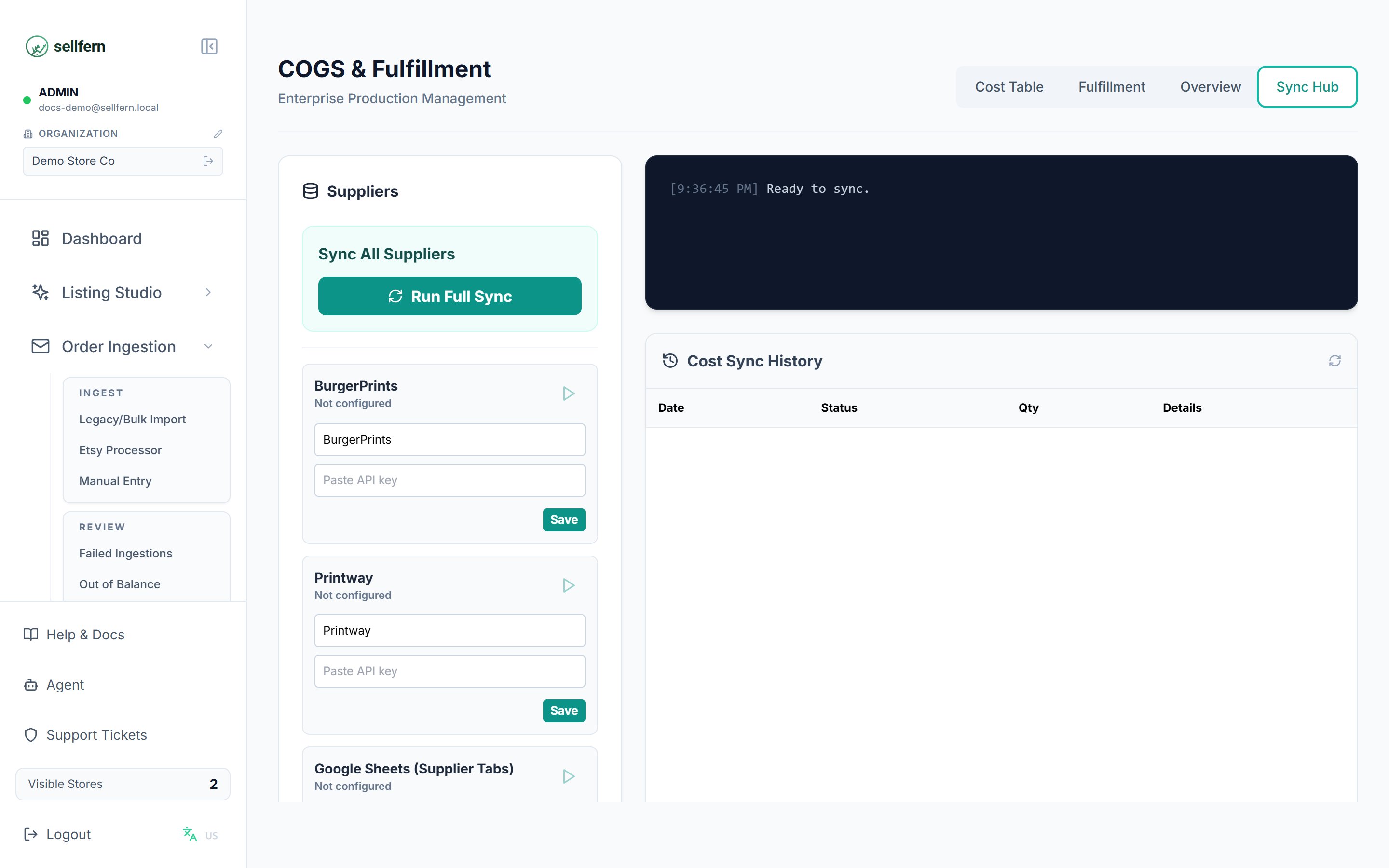 The Sync Hub automates cost and tracking retrieval from integrated suppliers so your team does not need to enter every update by hand.
* **Supported integrations** include Printway, BurgerPrints, and Google Sheets.
* **Manual sync** pings connected supplier services for updates on active orders.
* **Sync history** shows recent sync operations, status, updated item counts, and error or success details.
For public automation patterns, use the [developer quickstart](/developers/quickstart) or [API Reference](/api-reference/order-items/list-order-items) rather than internal supplier or sync routes.
### Printway catalog enrichment
When Sellfern imports products from Printway into the system catalog, it merges the supplier response with the public Printway product page so products land with richer details out of the box:
* Formatted product descriptions, short descriptions, and care or guideline text.
* Mockup gallery images and template artwork URLs.
* Processing-time-based lead times.
* Display price from the public storefront when supplier pricing is missing or zero.
* Deduplicated variants when the same SPU appears across multiple SKU arrays.
Descriptions are rendered as sanitized HTML on product detail pages. Inline scripts, iframes, and event handlers are stripped before render.
Public-page lookup is best-effort. If the supplier page is unavailable, Sellfern keeps the supplier data it already has and continues without interrupting the workflow.
## Views and Rules
Ledger tables support dynamic column layouts (Views) and automated text formatting/conversions (Rules) to clean up incoming order data and route them correctly.
### Saved Views
The **Views** engine allows you to save and manage custom layouts of the ledger tables.
* **Customize Layout**: Use the **Column Manager** overlay (gear icon next to **Views**) to toggle column visibility, freeze critical columns (like SKU or Order ID), and rename column headers.
* **Save Views**: Name your custom layout and save it. You can make it **Public** (visible to your whole team) or **Private** (visible only to you).
* **Switch Views**: Use the dropdown list next to the gear icon to quickly toggle between saved layouts (e.g., an "Artwork View" focusing on design links, or a "Shipping View" focusing on carrier info and tracking codes).
### Custom Text Rules
The **Rules** engine (gear icon next to **Rules**) lets you automate data cleanup and product mapping for incoming orders, reducing manual operational tasks.
#### Rule Types
* **Text Replacement**: Search for a specific pattern in a target column (e.g., `sku`, `color`, `size`, `personalization`) and replace it with new text.
* **Add Prefix**: Automatically prepend a string (e.g., `VCN-`) to a target column.
* **Case Conversion**: Force text to UPPERCASE or lowercase.
* **Size & Color Conversion**: Translate arbitrary variations (e.g., "Size: S Hoodie" or "2X") to standardized values (e.g., "S" or "2XL") using a map.
* **ID Service Lookup**: Match shipping countries (e.g., "United States") and map them to specific shipping line values.
* **SPU Builder**: Automatically construct target SKUs from SPU, size, color, and material components (separated by a custom separator like `-` or `/`).
#### Automation Triggers
* **Auto-run on initial ingestion**: Automatically executes the rule for all new orders imported (via Store Sync, CSV import, etc.).
* **Auto-apply on supplier assignment**: Runs when a user assigns a supplier to an item. This can be configured to run in **Silent mode** (bypassing user confirmation) or prompt the user for approval.
***
### Product Mapping Workflow (Catalog Setup)
The Rules engine works in tandem with the catalog configurations in **Settings → Catalog** to automate order matching and supplier routing:
1. **SKU Prefix Rules** (Settings → Catalog → SKU Prefix Rules):
Incoming orders may have custom SKUs from storefronts (e.g., Etsy/Shopify). Sellfern matches incoming SKUs to target SPUs using prefix rules:
* **Prefix Match**: Matches if the SKU starts with a prefix (e.g., `VCN-HD`).
* **Component Match**: Splits the SKU by `-` and matches the 3rd segment (e.g., `SS2D0290` from `VCN-NEI-SS2D0290-CTV`).
* Once matched, it resolves the SKU to a **Target SPU**.
2. **SPU Definitions** (Settings → Catalog → SPU Definitions):
Maps resolved Target SPUs to their operational attributes:
* **Product Type** (e.g., `2D`, `Embroidery`)
* **Product Subtype** (e.g., `2D tshirt Adult`)
* **Default Supplier** (e.g., `BurgerPrints`, `Printway`)
#### Example Setup (Organization 1)
For Organization 1, SKUs are automatically resolved and routed using this exact catalog workflow:
* **Incoming SKU**: `VCN-NEI-SS2D0290-CTV`
* **SKU Prefix Rule**: Matches the 3rd segment `SS2D0290` (Component Match) and maps it to Target SPU `SS2D0290`.
* **SPU Definition**: The SPU `SS2D0290` is defined with Product Type `2D`, Product Subtype `Sweatshirt`, and Default Supplier `BurgerPrints`.
* **Result**: On order ingestion, Sellfern automatically resolves the SPU attributes, fills in the default supplier as `BurgerPrints`, and populates the cost fields without requiring manual support edits.
## Role-based access
| Role | Access |
| ------------------- | ------------------------------------------------------------------------- |
| Admins and Managers | Full access to all tabs, bulk actions, and Sync Hub |
| Fulfillment Support | Fulfillment and Overview tabs only; limited to assigned suppliers |
| Standard Support | Cost Table only |
| Supplier accounts | Fulfillment tab only; limited to items assigned to their supplier profile |
The Sync Hub automates cost and tracking retrieval from integrated suppliers so your team does not need to enter every update by hand.
* **Supported integrations** include Printway, BurgerPrints, and Google Sheets.
* **Manual sync** pings connected supplier services for updates on active orders.
* **Sync history** shows recent sync operations, status, updated item counts, and error or success details.
For public automation patterns, use the [developer quickstart](/developers/quickstart) or [API Reference](/api-reference/order-items/list-order-items) rather than internal supplier or sync routes.
### Printway catalog enrichment
When Sellfern imports products from Printway into the system catalog, it merges the supplier response with the public Printway product page so products land with richer details out of the box:
* Formatted product descriptions, short descriptions, and care or guideline text.
* Mockup gallery images and template artwork URLs.
* Processing-time-based lead times.
* Display price from the public storefront when supplier pricing is missing or zero.
* Deduplicated variants when the same SPU appears across multiple SKU arrays.
Descriptions are rendered as sanitized HTML on product detail pages. Inline scripts, iframes, and event handlers are stripped before render.
Public-page lookup is best-effort. If the supplier page is unavailable, Sellfern keeps the supplier data it already has and continues without interrupting the workflow.
## Views and Rules
Ledger tables support dynamic column layouts (Views) and automated text formatting/conversions (Rules) to clean up incoming order data and route them correctly.
### Saved Views
The **Views** engine allows you to save and manage custom layouts of the ledger tables.
* **Customize Layout**: Use the **Column Manager** overlay (gear icon next to **Views**) to toggle column visibility, freeze critical columns (like SKU or Order ID), and rename column headers.
* **Save Views**: Name your custom layout and save it. You can make it **Public** (visible to your whole team) or **Private** (visible only to you).
* **Switch Views**: Use the dropdown list next to the gear icon to quickly toggle between saved layouts (e.g., an "Artwork View" focusing on design links, or a "Shipping View" focusing on carrier info and tracking codes).
### Custom Text Rules
The **Rules** engine (gear icon next to **Rules**) lets you automate data cleanup and product mapping for incoming orders, reducing manual operational tasks.
#### Rule Types
* **Text Replacement**: Search for a specific pattern in a target column (e.g., `sku`, `color`, `size`, `personalization`) and replace it with new text.
* **Add Prefix**: Automatically prepend a string (e.g., `VCN-`) to a target column.
* **Case Conversion**: Force text to UPPERCASE or lowercase.
* **Size & Color Conversion**: Translate arbitrary variations (e.g., "Size: S Hoodie" or "2X") to standardized values (e.g., "S" or "2XL") using a map.
* **ID Service Lookup**: Match shipping countries (e.g., "United States") and map them to specific shipping line values.
* **SPU Builder**: Automatically construct target SKUs from SPU, size, color, and material components (separated by a custom separator like `-` or `/`).
#### Automation Triggers
* **Auto-run on initial ingestion**: Automatically executes the rule for all new orders imported (via Store Sync, CSV import, etc.).
* **Auto-apply on supplier assignment**: Runs when a user assigns a supplier to an item. This can be configured to run in **Silent mode** (bypassing user confirmation) or prompt the user for approval.
***
### Product Mapping Workflow (Catalog Setup)
The Rules engine works in tandem with the catalog configurations in **Settings → Catalog** to automate order matching and supplier routing:
1. **SKU Prefix Rules** (Settings → Catalog → SKU Prefix Rules):
Incoming orders may have custom SKUs from storefronts (e.g., Etsy/Shopify). Sellfern matches incoming SKUs to target SPUs using prefix rules:
* **Prefix Match**: Matches if the SKU starts with a prefix (e.g., `VCN-HD`).
* **Component Match**: Splits the SKU by `-` and matches the 3rd segment (e.g., `SS2D0290` from `VCN-NEI-SS2D0290-CTV`).
* Once matched, it resolves the SKU to a **Target SPU**.
2. **SPU Definitions** (Settings → Catalog → SPU Definitions):
Maps resolved Target SPUs to their operational attributes:
* **Product Type** (e.g., `2D`, `Embroidery`)
* **Product Subtype** (e.g., `2D tshirt Adult`)
* **Default Supplier** (e.g., `BurgerPrints`, `Printway`)
#### Example Setup (Organization 1)
For Organization 1, SKUs are automatically resolved and routed using this exact catalog workflow:
* **Incoming SKU**: `VCN-NEI-SS2D0290-CTV`
* **SKU Prefix Rule**: Matches the 3rd segment `SS2D0290` (Component Match) and maps it to Target SPU `SS2D0290`.
* **SPU Definition**: The SPU `SS2D0290` is defined with Product Type `2D`, Product Subtype `Sweatshirt`, and Default Supplier `BurgerPrints`.
* **Result**: On order ingestion, Sellfern automatically resolves the SPU attributes, fills in the default supplier as `BurgerPrints`, and populates the cost fields without requiring manual support edits.
## Role-based access
| Role | Access |
| ------------------- | ------------------------------------------------------------------------- |
| Admins and Managers | Full access to all tabs, bulk actions, and Sync Hub |
| Fulfillment Support | Fulfillment and Overview tabs only; limited to assigned suppliers |
| Standard Support | Cost Table only |
| Supplier accounts | Fulfillment tab only; limited to items assigned to their supplier profile |